
Can a Microwave Interfere With Wi-Fi?
If Wi-Fi degrades only when the microwave runs, test the same device nearby on 5 GHz or 6 GHz, move the router or client farther away, and inspect the microwave for damage. Do not open or repair a microwave enclosure yourself.
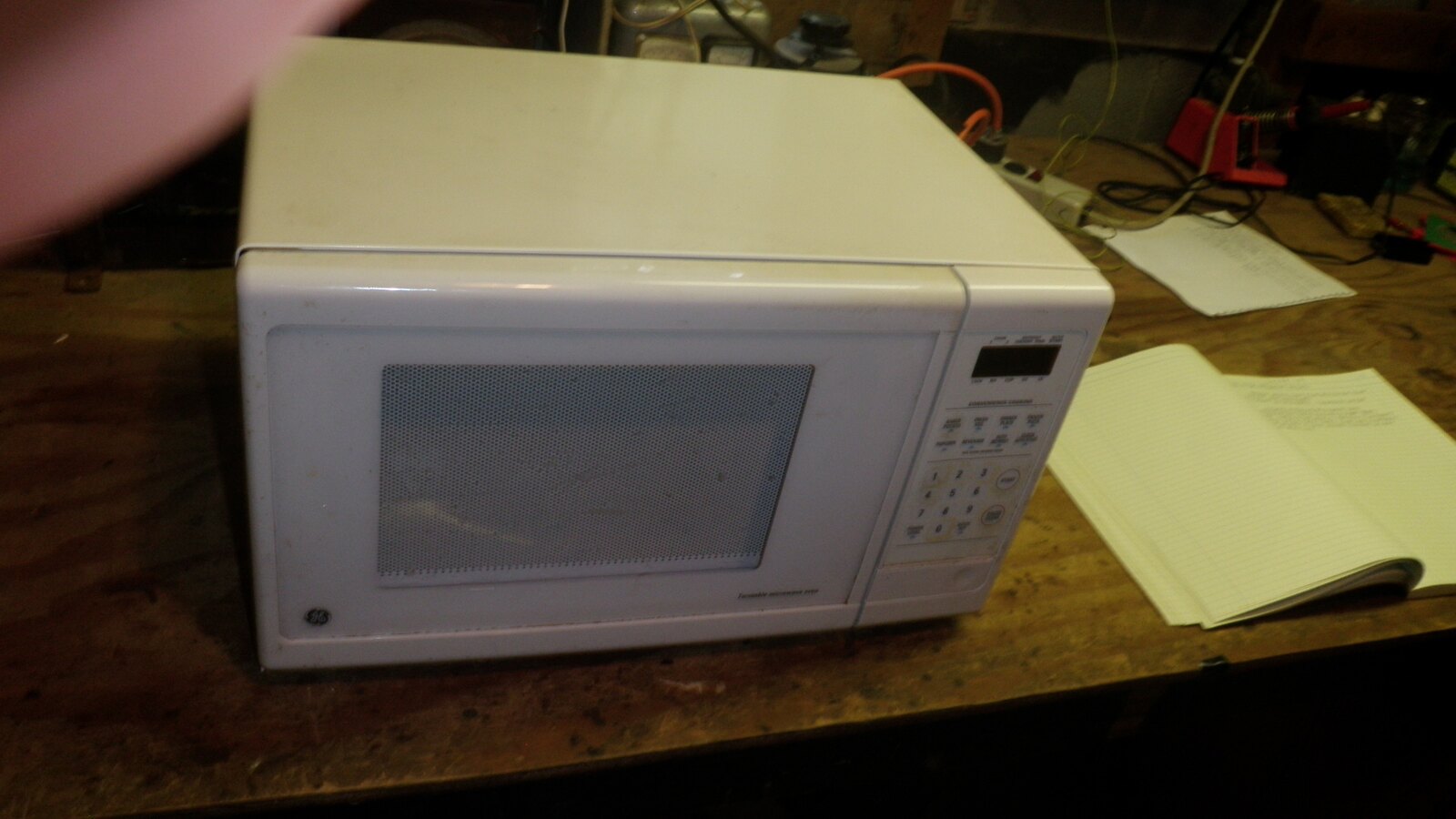

Yes. A microwave oven can interfere with 2.4 GHz Wi-Fi, especially when:
- The router, access point, or client is nearby
- The Wi-Fi signal is already weak
- The microwave is between the devices
- The microwave is running
- The equipment or shielding is damaged
- The network is using a crowded 2.4 GHz channel
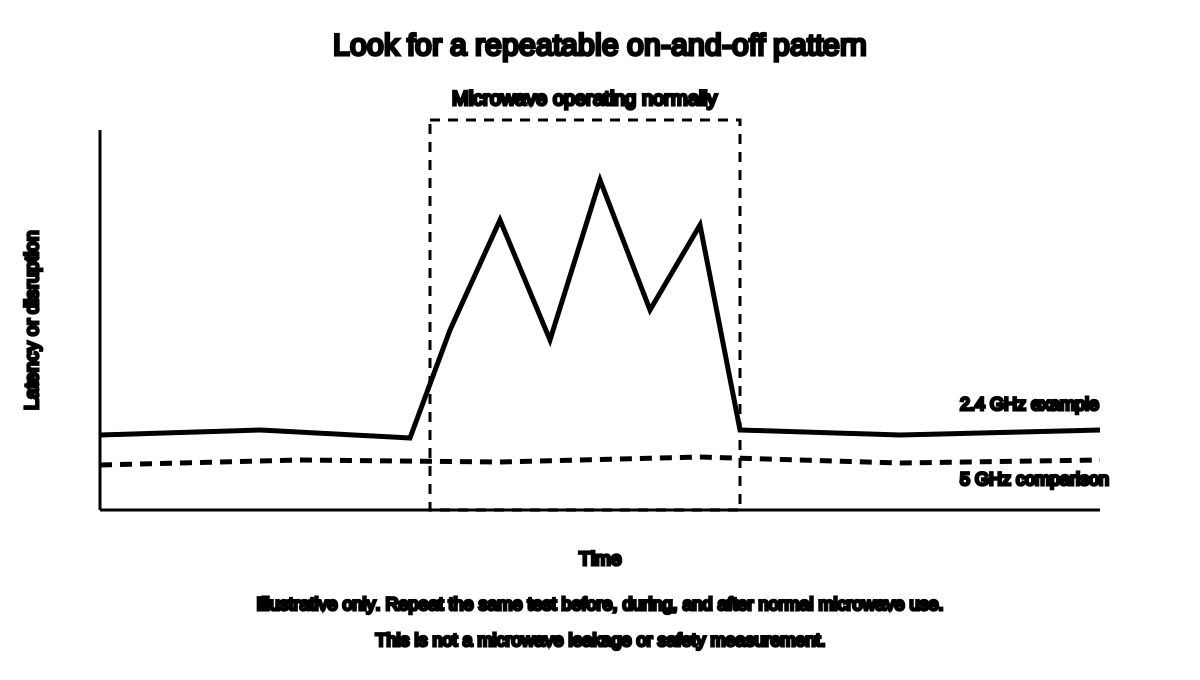
The problem usually appears as a slowdown, high latency, packet loss, or disconnection only while the microwave is operating.
Quick answer: If Wi-Fi degrades only when the microwave runs, test the same device nearby on 5 GHz or 6 GHz, move the router or client farther away, and inspect the microwave for damage. Do not open or repair a microwave enclosure yourself.
Why 2.4 GHz is affected
Wi-Fi commonly uses the 2.4 GHz band.
Microwave ovens heat food using radio-frequency energy near 2.45 GHz. The oven is designed to contain that energy, but ordinary leakage and electrical noise can affect nearby 2.4 GHz communication, especially when the desired Wi-Fi signal is weak.
Google Fiber lists microwave ovens among devices that can create interference on home wireless networks.[1]
Cisco’s wireless interference systems identify microwave ovens as a 2.4 GHz interference type.[2][3]
This does not mean every microwave disrupts every network.
What the symptom looks like
Possible signs include:
- Video call freezes when the microwave starts
- Smart device disconnects during reheating
- Speed test collapses only in the kitchen
- Latency spikes for one or two minutes
- 2.4 GHz network disappears temporarily
- 5 GHz remains normal
- Problem stops when microwave cycle ends
A persistent network problem when the microwave is off probably has another cause.
Run a controlled test

Use a safe normal heating task. Do not run a microwave empty.
- Place one test device at its usual location.
- Confirm the connected band.
- Run several baseline tests with the microwave off.
- Operate the microwave normally.
- Repeat the same test.
- Stop the microwave.
- Repeat again.
- Test another device.
- Test 5 GHz or 6 GHz where available.
- Record download, upload, latency, and disconnects.
A single slow result does not prove interference.
Look for a repeatable on/off pattern.
Test 5 GHz or 6 GHz
Microwave interference is primarily a 2.4 GHz issue.
Moving a capable device to:
- 5 GHz
- 6 GHz
can avoid the overlapping microwave band.
Cisco describes microwave ovens as a 2.4 GHz interference source, and Google recommends 5 GHz when 2.4 GHz is congested or affected by interference.[2][4]
The tradeoff is that higher-frequency bands often have less range through walls.
A distant device may perform better on clean 2.4 GHz than weak 5 GHz.
Move the router
Do not place the router:
- On top of the microwave
- Beside the microwave
- Behind the refrigerator
- Inside a metal cabinet
- In a kitchen corner surrounded by appliances
- In a closed pantry
- Near heavy electrical equipment
Move it:
- Farther from the kitchen appliance
- Higher
- Into the open
- Toward the center of the coverage area
- Away from metal and water
A few feet may help if it changes the signal path or raises the desired Wi-Fi signal above the interference.
Move the client device
A laptop or streaming device near the microwave may be affected even when the router is elsewhere.
Try:
- Moving across the room
- Moving out from behind the appliance
- Raising the device
- Using Ethernet
- Using 5 GHz
- Relocating a fixed smart-home hub
The strongest practical fix may be changing the client location rather than the router.
Change channels carefully
Microwave noise can affect a broad part of 2.4 GHz rather than one neat Wi-Fi channel.
Random channel changes may not solve it.
Apple recommends automatic channel selection for home routers.[5]
If the router does not manage channels well:
- Use current manufacturer guidance.
- Measure several times.
- Prefer standard non-overlapping channel plans.
- Avoid forcing unusual channel widths.
- Retest the whole home.
Do not use one phone app reading as proof of the perfect channel.
A damaged microwave is a different problem
Stop using the microwave and seek qualified service when:
- Door does not close firmly
- Door is bent
- Hinges are damaged
- Latches are damaged
- Seal surfaces are damaged
- Oven operates with the door open
- Arcing, burning, smoke, or unusual noise occurs
FDA says consumers should not use a microwave if the door does not close firmly or if the door, hinges, latches, or seals are damaged.[6]
Do not open the cabinet. Microwave ovens contain high-voltage components that can remain dangerous even after unplugging.
Do not use Wi-Fi as a microwave leakage test
A Wi-Fi slowdown does not measure microwave leakage or prove that the oven violates safety standards.
It only shows that the network is experiencing interference correlated with the oven’s operation.
For appliance safety:
- Follow FDA guidance
- Follow manufacturer instructions
- Use qualified service
- Replace unsafe equipment
Do not place a phone beside the door and interpret the signal icon as radiation instrumentation. Humanity has manufactured actual test equipment for a reason.
Smart-home devices may be more vulnerable
Many:
- Smart plugs
- Thermostats
- Sensors
- Cameras
- Appliances
use 2.4 GHz because it offers longer range and broad compatibility.
A weak smart device near the kitchen may disconnect while phones on 5 GHz appear normal.
Possible fixes:
- Move the router
- Move the hub
- Improve 2.4 GHz coverage
- Reduce obstructions
- Use a wired bridge
- Replace an unsupported device
- Add a correctly placed access point
Do not weaken WPA2 or WPA3 security to keep an old device online.
Apartment and multi-unit interference
The microwave causing interference may be:
- Yours
- A neighbor’s
- In a break room
- In a restaurant kitchen
- In a shared floor
If the pattern occurs at predictable meal times, record it.
You may not control the appliance. In that case:
- Use 5 GHz or 6 GHz
- Improve local signal
- Use Ethernet
- Move access point
- Move client
- Use a different room
Frequently asked questions
Does every microwave interfere with Wi-Fi?
No. Distance, shielding, signal strength, band, layout, and equipment condition matter.
Does a microwave interfere with 5 GHz Wi-Fi?
The common household interference problem is primarily in 2.4 GHz. Other electrical noise and obstructions can still affect performance.
Is interference proof the microwave is unsafe?
No. Wi-Fi is not a leakage-safety instrument.
Should I change the router channel?
Automatic channel selection is generally preferable. A channel change may help some environments but is not guaranteed.
Can Ethernet fix the problem?
Ethernet avoids the local wireless interference for the wired device.
Related guides
Source notes
- Reduce wireless interferenceGoogle Fiber Help
- Wireless RF Reference GuideCisco
- Cisco Catalyst CleanAir configuration guideCisco
- Test Wi-Fi speed and troubleshoot interferenceGoogle Home and Nest Help
- Recommended settings for Wi-Fi routers and access pointsApple Support
- Microwave OvensU.S. Food and Drug Administration
See something wrong or out of date? Report a correction.