
2.4 GHz vs. 5 GHz Wi-Fi: Which Should You Use?
Try 5 GHz for nearby laptops, televisions, and game systems. Try 2.4 GHz for distant rooms and many smart-home devices. Leave both bands enabled unless the manufacturer says otherwise.
.jpg)
Use 2.4 GHz when range and obstacle penetration matter more. Use 5 GHz when the device is closer to the router and needs more wireless capacity.
That is the basic tradeoff, not a guarantee. Actual performance depends on the router, device, channel, interference, walls, and Wi-Fi standard.
Quick answer: Try 5 GHz for nearby laptops, televisions, and game systems. Try 2.4 GHz for distant rooms and many smart-home devices. Leave both bands enabled unless the manufacturer says otherwise.
The practical difference
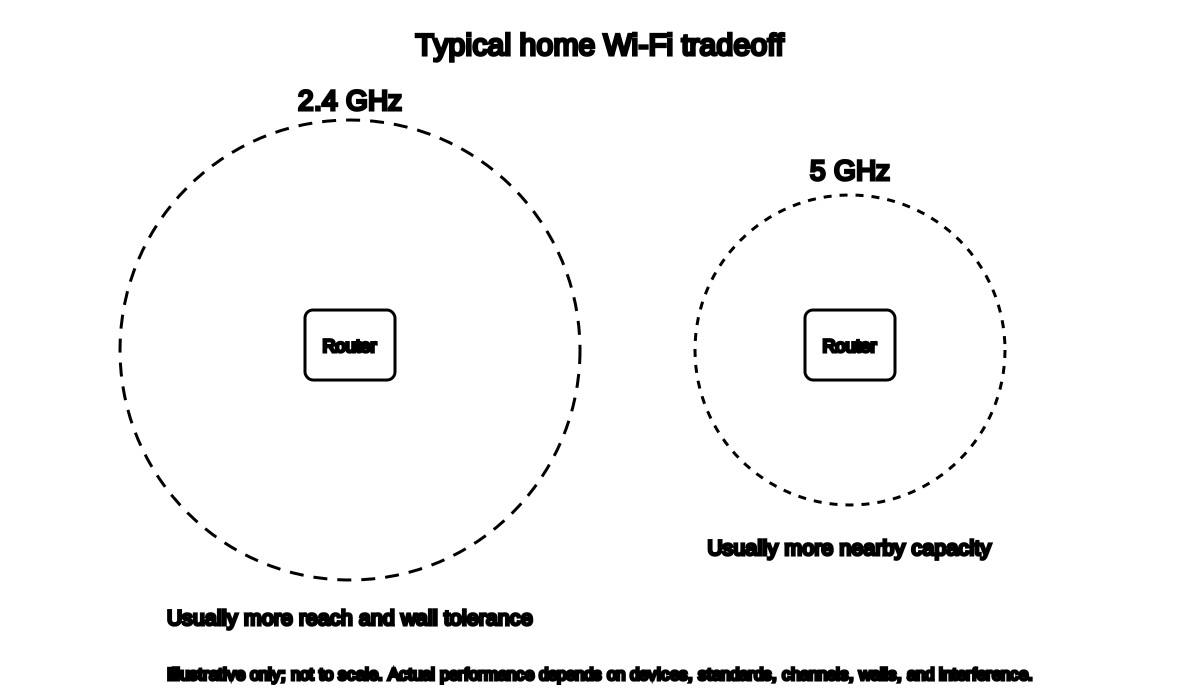
Illustrative only; not to scale. Actual performance depends on devices, standards, channels, walls, and interference.
| Feature | 2.4 GHz | 5 GHz |
|---|---|---|
| Typical range in a home | Longer | Shorter |
| Obstacles | Usually handles walls better | Usually loses more through walls |
| Available capacity | Lower | Higher |
| Congestion | Often crowded | Often less crowded |
| Common uses | Distant rooms, basic devices, many smart devices | Streaming, large downloads, nearby computers |
| Device support | Very broad | Broad, but not universal on old or simple devices |
Microsoft notes that consumer Wi-Fi networks may use 2.4 GHz, 5 GHz, and 6 GHz, and that home layout affects which band fits the situation.[1]
Google notes that devices on 2.4 GHz may not achieve speeds as fast as those on 5 GHz, while distance, physical barriers, neighboring networks, microwaves, and baby monitors can all affect performance.[2]
Why 2.4 GHz often reaches farther
2.4 GHz uses a lower radio frequency than 5 GHz. In a typical home, it often experiences less loss over distance and through walls.
That makes it useful for:
- Distant bedrooms
- Garages
- Basements
- Smart plugs
- Older printers
- Simple connected appliances
- Devices that do not support 5 GHz
Longer range does not mean unlimited range or guaranteed reliability.
Why 5 GHz often feels faster
5 GHz generally provides more available spectrum and supports wider channels. It often faces less congestion from older household Wi-Fi networks.
It is useful for:
- Laptops near the router
- Televisions
- Game consoles
- Video calls
- Local file transfers
- High-resolution streaming
- Crowded apartments, when the shorter-range channel is cleaner
The device and router must both support the relevant Wi-Fi standard and channel.
What about 6 GHz?
6 GHz is available on Wi-Fi 6E and Wi-Fi 7 equipment in supported regions.
It can provide additional clean spectrum and capacity for compatible devices, but:
- Older devices cannot use it
- Range through walls is usually more limited
- Security and configuration requirements differ
- A 6 GHz-capable router does not make every device 6 GHz-capable
Batch 2 focuses on 2.4 and 5 GHz because those are the bands most households encounter.
Your router may choose automatically

Many routers use one network name across all bands. The router and device then negotiate or steer the connection.
Apple recommends:
- One unique network name for all supported bands
- All supported bands enabled
- Automatic channel selection
- Current firmware[3]
Separate network names can be useful temporarily during diagnosis, but they may reduce reliable roaming or compatibility on some systems. Do not permanently split bands unless the router manufacturer or a specific device requires it.
How to tell which band you are using
The method varies.
- Some router apps display the connected band.
- Windows adapter properties may show the band or channel.
- On Mac, Option-click the Wi-Fi menu to view frequency and channel details.
- Some Android devices show frequency under network details.
- iPhone and iPad usually do not show the band directly in ordinary Wi-Fi settings.
Use official device documentation. Do not install a random “Wi-Fi analyzer” that requests excessive permissions.
When to try 2.4 GHz
Try 2.4 GHz when:
- The device is several rooms away
- The signal passes through multiple walls
- The device repeatedly disconnects on 5 GHz
- A smart-home device supports only 2.4 GHz
- The garage, basement, or outdoor edge needs basic connectivity
- Peak speed matters less than stability
When to try 5 GHz
Try 5 GHz when:
- The device is close to the router
- 2.4 GHz is crowded
- Large downloads are slow
- Streaming or video calls need more capacity
- The device supports a newer Wi-Fi standard
- The signal path has few dense obstacles
If both bands use the same name
That is normal and often preferable.
To diagnose without renaming:
- Move close to the router.
- Check the band in the router app or device details.
- Run a test.
- Move to the problem location.
- Check whether the band changed.
- Compare stability and speed.
If a device stubbornly chooses a poor band, consult the router and device documentation before disabling steering.
Channel width matters too
Apple recommends:
- 20 MHz for 2.4 GHz
- Auto or all supported widths for 5 GHz and 6 GHz[3]
A wider channel can carry more data, but it also occupies more spectrum and can be more susceptible to interference. Randomly forcing maximum width is not always faster in a crowded building.
Do not confuse 5 GHz Wi-Fi with cellular 5G
They are different.
- 5 GHz is a Wi-Fi radio frequency used inside a local network.
- 5G is a cellular network generation used by mobile carriers.
A device may support one, both, or neither.
Smart-home devices and setup
Many smart devices support only 2.4 GHz. If setup fails:
- Confirm the device’s supported bands.
- Follow the manufacturer’s setup instructions.
- Keep the phone and device near the router.
- Do not disable network security.
- Do not permanently weaken router settings for one obsolete device.
A device that requires WEP, WPA, or TKIP should not force the entire home network onto deprecated security.
Frequently asked questions
Is 5 GHz always faster?
No. It usually offers more capacity nearby, but weak 5 GHz can perform worse than strong 2.4 GHz.
Does 2.4 GHz go through walls better?
Generally yes, though wall materials and layout can dominate the result.
Should I turn off 2.4 GHz?
Usually no. Many distant and smart-home devices need it.
Should the bands have different names?
Usually keep one unique name for all bands. Separate names can help temporary diagnosis or required compatibility, but Apple recommends one name across bands.[3]
Which band is better for gaming?
A strong, stable 5 GHz connection may work well, but wired Ethernet is usually more consistent. Weak 5 GHz is not better merely because the number is larger.
Related Wi-Fi guides
- Diagnose slow Wi-Fi
- Diagnose repeated disconnects
- Fix dead zones with free changes
- Test a better router location
Source notes
- Wi-Fi and your home layoutMicrosoft Support
- How to improve Nest Wifi Pro, Nest Wifi or Google Wi-Fi speed and performanceGoogle Nest Help
- Recommended settings for Wi-Fi routers and access pointsApple Support
- If you can't connect to Wi-Fi on your iPhone or iPadApple Support
See something wrong or out of date? Report a correction.