
Why Is My Wi-Fi So Slow? 12 Things to Check Before Buying Anything
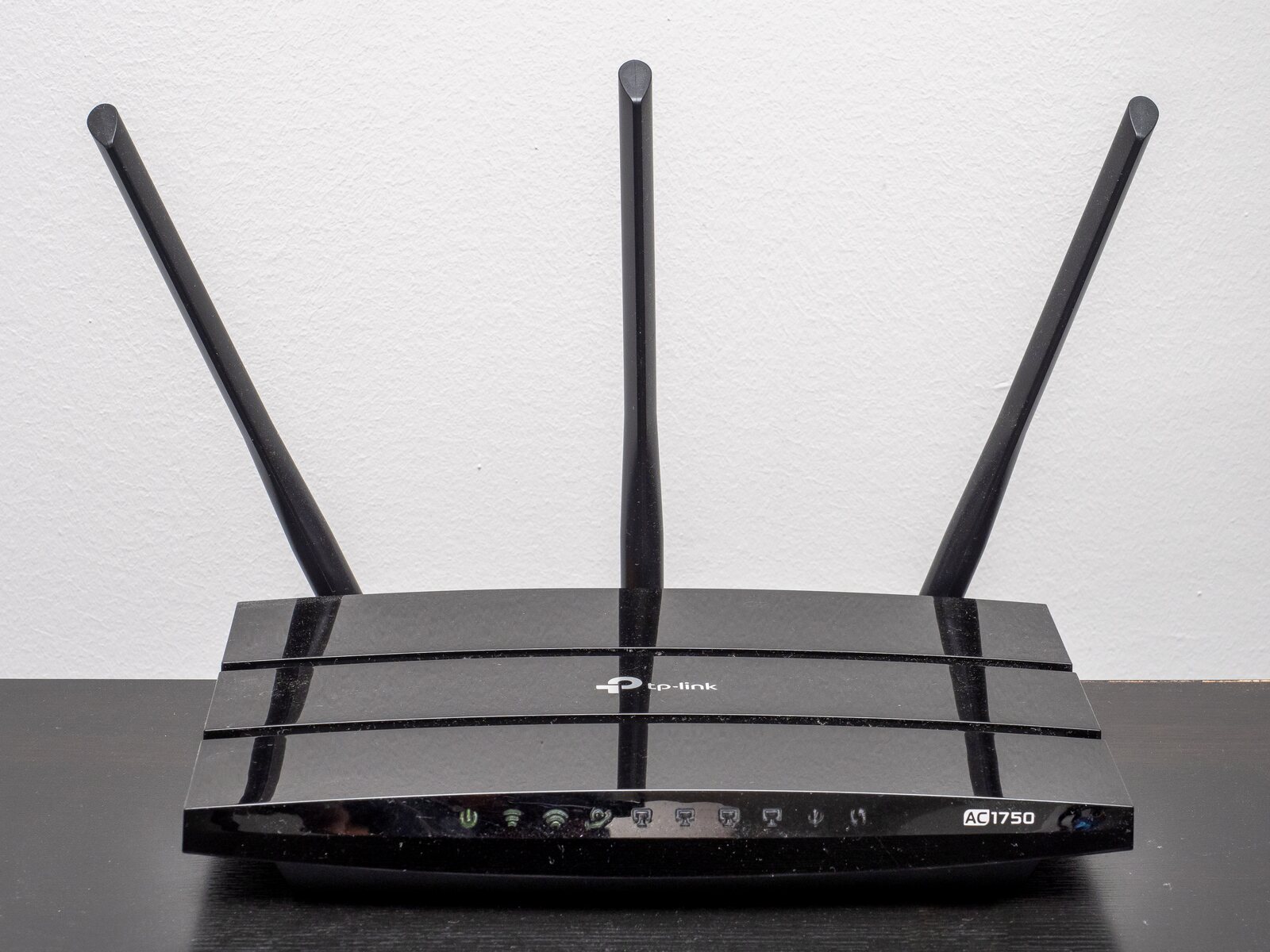
Test another device beside the router before spending money. If every device is slow even close to the router, check the modem, internet service, cables, and router. If only distant rooms are slow, work on placement and signal coverage.
.jpg)
Slow Wi-Fi does not automatically mean you need a new router. The problem may be the internet service, the modem, the router’s location, radio interference, one device, background traffic, or a weak signal in only part of the home.
The fastest useful diagnosis is to run the same test in two places:
- Beside the router
- In the room where Wi-Fi feels slow
Use the same device, the same test service, and roughly the same time. If performance is good near the router but poor in the problem room, the issue is probably Wi-Fi coverage or interference. If it is poor beside the router too, investigate the internet connection, modem, router, or device.
Quick answer: Test another device beside the router before spending money. If every device is slow even close to the router, check the modem, internet service, cables, and router. If only distant rooms are slow, work on placement and signal coverage.
First, separate Wi-Fi from the internet connection
People often use “Wi-Fi” and “internet” as though they are the same thing. They are not.
- Wi-Fi is the wireless link between your device and the router or access point.
- Internet service is the connection from the modem or gateway to your provider and the wider internet.
You can have:
- Strong Wi-Fi with no internet because the provider is down
- Working internet at the modem but weak Wi-Fi in a distant room
- Good Wi-Fi and internet, but one slow website or app
- A healthy network with one malfunctioning device
This distinction determines what to test next.
How to run a useful home Wi-Fi test
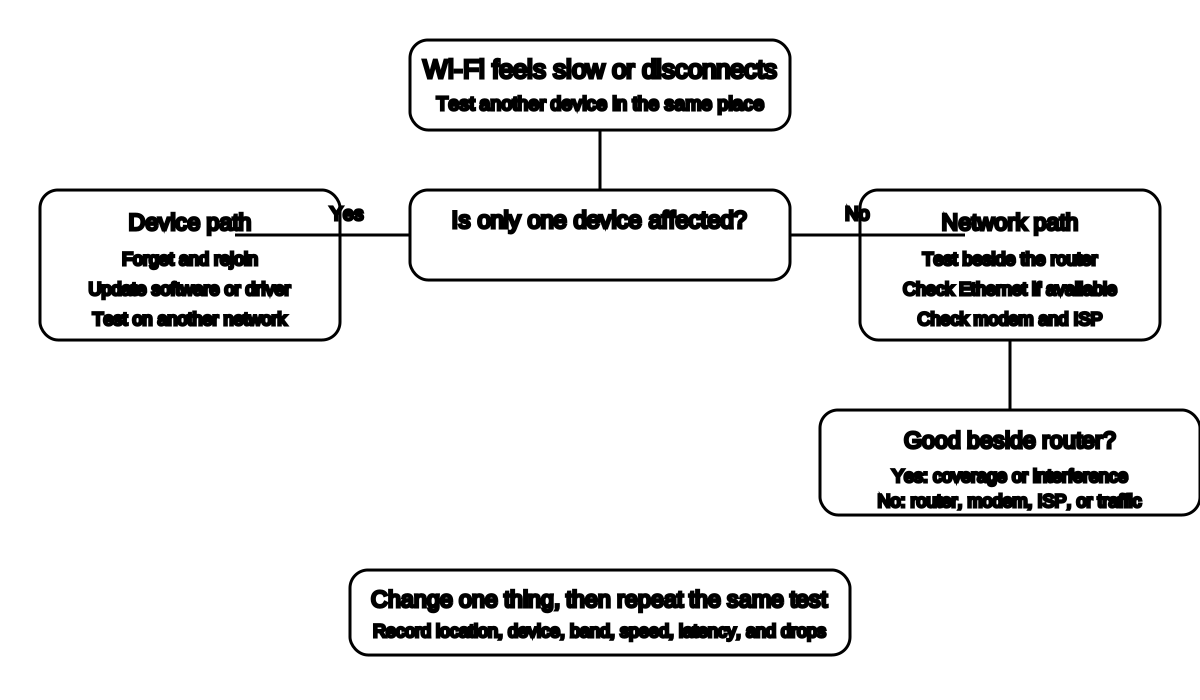
Use the scope test to choose a device, Wi-Fi, or internet troubleshooting path; then change one thing and repeat the same test.
Before changing settings:
- Use one laptop or phone for all comparison tests
- Pause large downloads, game updates, cloud backups, and streaming
- Stand in a repeatable location
- Run at least three tests and record the middle result
- Record download, upload, and latency if the test reports them
- Use the same speed-test service for each comparison
- Do not compare a phone on Wi-Fi with another phone on cellular data
Microsoft recommends taking a baseline in several locations, then repeating the tests after changes.[1]
A speed test is not a laboratory measurement. Results vary with the test server, time of day, device, radio band, network traffic, and internet congestion. The pattern between locations is usually more useful than one dramatic number.
1. Test beside the router
Move within a few feet of the router or access point without blocking it with your body. Run several tests.
If performance is much better here than in the problem room, skip ahead to:
- Router placement
- Physical obstacles
- 2.4 GHz versus 5 GHz
- Dead-zone fixes
If it remains slow, keep diagnosing the connection itself.
2. Test another device
Try another phone, tablet, or laptop on the same Wi-Fi network.
| Result | Likely direction |
|---|---|
| One device is slow; others are normal | Device settings, driver, saved network, VPN, software, or hardware |
| Every device is slow | Router, modem, internet service, interference, or network-wide traffic |
| Only one app or website is slow | App, service, DNS, VPN, or remote-server issue |
| Only one room is slow | Coverage, placement, or obstacles |
Google and Microsoft both recommend testing another device to separate a device problem from a network problem.[2][3]
3. Compare Wi-Fi with Ethernet when possible
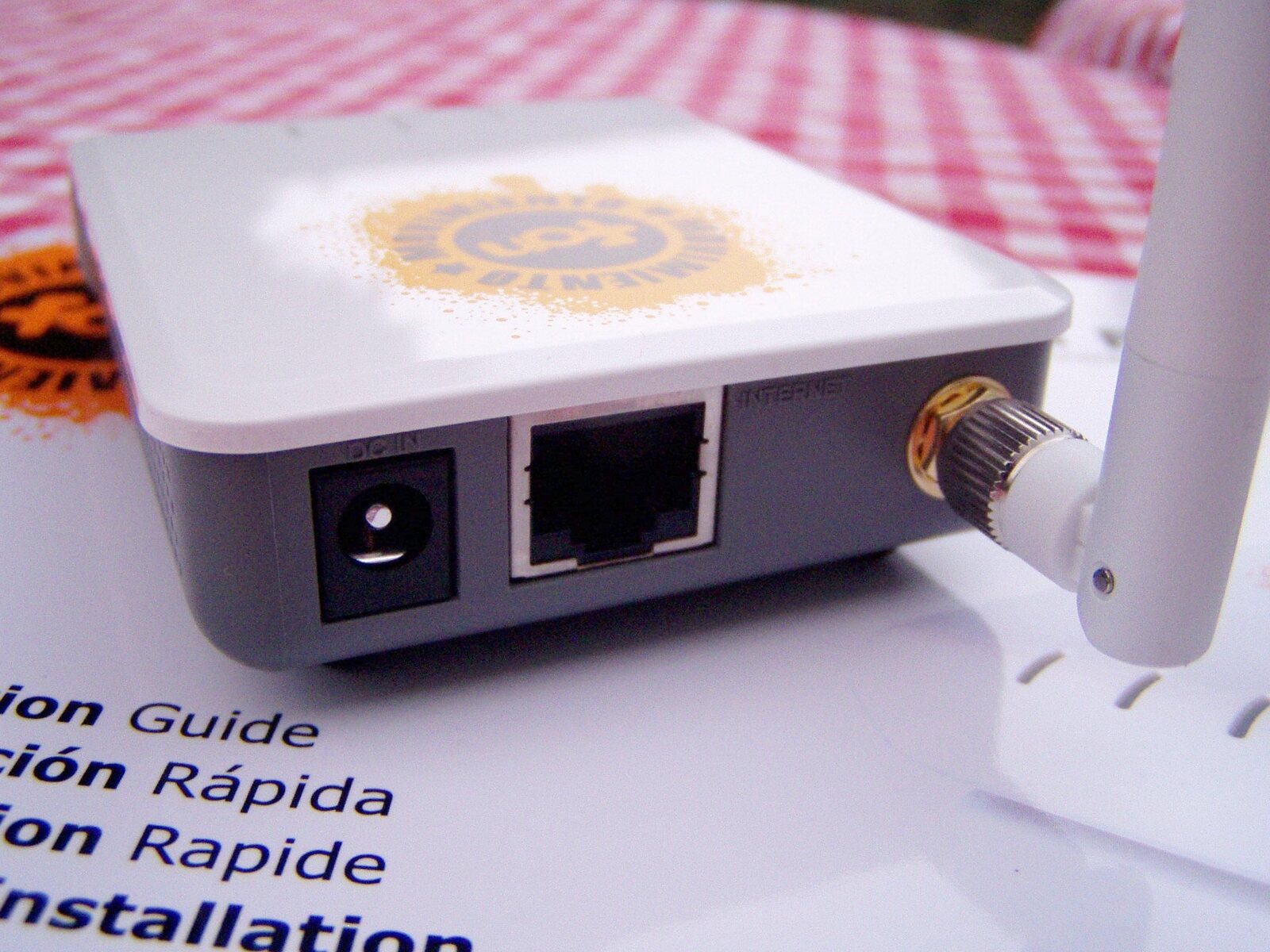

If you have a computer and a compatible Ethernet cable, connect it directly to the router or gateway and repeat the test.
- Ethernet good, Wi-Fi poor: focus on the wireless side.
- Ethernet and Wi-Fi both poor: focus on the modem, provider, router uplink, or internet plan.
- Ethernet cannot connect either: check the modem, router, cables, or provider outage.
Do not unplug a provider-managed gateway or move cables you cannot identify. Photograph the existing connections before changing anything.
4. Pause background traffic
One device can consume much of the available connection without looking dramatic.
Check for:
- Operating-system updates
- Game downloads
- Cloud-photo synchronization
- Computer backups
- Security-camera uploads
- Large file transfers
- Several simultaneous video streams
- A device repeatedly retrying a failed download
Pause the activity, wait a minute, and test again.
This does not prove the router is defective. It may only show that the internet plan or local wireless capacity is being shared.
5. Restart the modem and router correctly
A restart can clear a stuck connection, renew the provider link, or recover from a temporary software fault.
For separate modem and router devices, Microsoft’s general sequence is:
- Unplug the router.
- Unplug the modem.
- Wait about 30 seconds.
- Reconnect the modem and wait until its normal status lights settle.
- Reconnect the router and wait for it to finish starting.[3]
If you have one combined gateway, restart only that device. Follow the provider or manufacturer instructions if they differ.
A restart is not a factory reset. Do not press a recessed reset button unless you intend to erase the configuration.
6. Check cables, power, and status lights
Inspect without opening the equipment.
- Confirm the power connectors are fully seated.
- Confirm the modem-to-router Ethernet cable is secure.
- Look for a damaged cable or loose connector.
- Compare the indicator lights with the manual.
- Make sure the router is not repeatedly rebooting.
- Check whether the modem shows an outage or signal warning.
Replace only cables you can identify and safely access.
7. Move closer and remove obstacles
Google notes that Wi-Fi speed can vary with distance, frequency band, walls, and other physical barriers.[2]
Common signal blockers include:
- Multiple walls or floors
- Brick, concrete, stone, or tile
- Metal cabinets, ductwork, and appliances
- Large mirrors
- Aquariums and other large bodies of water
- A router hidden behind a television
- A router inside furniture
If moving one room closer produces a major improvement, the connection may be healthy and the coverage simply inadequate at the original location.
8. Improve router placement
A router usually works best when it is:
- Near the center of the area that needs coverage
- Out in the open
- Off the floor
- Away from dense barriers and major appliances
- Given adequate ventilation
Do not cover it, put it in an enclosed cabinet, balance it on unstable furniture, or place indoor equipment where it can get wet.
See Best Place to Put Your Wi-Fi Router for a complete placement test.
9. Try another frequency band
Many routers support both 2.4 GHz and 5 GHz. Some also support 6 GHz.
In general:
- 2.4 GHz reaches farther and handles obstacles better, but it is often more crowded.
- 5 GHz usually provides more capacity at shorter range.
- 6 GHz can provide additional capacity for compatible devices, but range through walls is usually more limited.
Microsoft recommends trying another band as part of connection troubleshooting.[3]
Your router may use one network name for all bands and move devices automatically. Do not permanently split network names merely to chase one speed-test result. Use the manufacturer’s documentation before changing band or steering settings.
10. Forget and rejoin the network on one problem device
A saved profile can become inconsistent after a password, security, or router-setting change.
On a problem device:
- Confirm you know the Wi-Fi password.
- Forget or remove the saved network.
- Rejoin it.
- Test again.
Apple, Google, and Microsoft all include forgetting and rejoining a network in their device troubleshooting guidance.[3][4][5]
Be cautious when devices share saved networks through an account or keychain. Forgetting one network may affect other devices.
11. Update the router and the device
Firmware and operating-system updates can fix stability, compatibility, performance, and security problems.
- Check the router manufacturer or ISP for the supported update method.
- Prefer automatic firmware updates when the router supports them.
- Update the phone, computer, or tablet.
- Use the device manufacturer’s driver rather than a random driver-download site.
- Replace unsupported network hardware that no longer receives security updates.
Apple recommends current router firmware and automatic updates where available. The FTC also advises checking the manufacturer or ISP for router updates.[6][7]
Back up router settings before making substantial configuration changes.
12. Contact the ISP before replacing hardware
Contact your provider when:
- Every device is slow beside the router
- Ethernet is also slow
- The modem shows abnormal status lights
- The connection drops at the same times every day
- The provider reports an outage
- Your measured performance remains far below the plan after repeated tests
- The gateway is provider-owned and cannot be updated or replaced by you
Have these details ready:
- Account and service address
- Modem or gateway model
- Date and time of tests
- Wired and wireless results
- Whether every device is affected
- Status-light behavior
- Recent outages or equipment changes
The FCC complaint system includes speed, latency, equipment, and interference as internet-service complaint categories, but first give the provider a reasonable opportunity to investigate.[8]
Do not factory-reset the router first
A factory reset can erase:
- Network name and password
- ISP settings
- Security settings
- Port forwarding
- Parental controls
- Device reservations
- Guest networks
- Mesh or access-point relationships
Use it only when the manufacturer or provider recommends it and you have the information needed to rebuild the network.
When new hardware might actually be justified
Replacement or additional equipment may be reasonable when:
- The router no longer receives security updates
- It cannot provide WPA2 or WPA3 security
- It repeatedly crashes after supported firmware and power checks
- Coverage remains poor after placement changes
- The home is too large or structurally difficult for one access point
- Wired speed is healthy but the router cannot serve current devices reliably
- The provider confirms the gateway is faulty
That decision belongs after diagnosis, not before it.
Frequently asked questions
Why is the speed test fast but streaming still buffers?
The problem may be intermittent packet loss, latency variation, the streaming service, Wi-Fi instability, VPN use, or another device consuming bandwidth. One speed test is only a snapshot.
Why is Wi-Fi slow only at night?
More people may be using your home network, neighboring Wi-Fi channels, or the provider’s local network. Repeat tests beside the router and over Ethernet at several times.
Will restarting the router make Wi-Fi faster?
It can resolve a temporary fault, but it does not fix poor placement, interference, an inadequate plan, or unsupported hardware.
Does a full Wi-Fi signal icon mean the internet is fast?
No. The icon mainly represents the device’s link to the access point. The provider connection or remote service may still be slow.
Should I change channels manually?
Usually leave channel selection on Auto unless the router or manufacturer recommends otherwise. Manual channel changes can help in some environments, but random changes often create new problems.[6]
Related Wi-Fi guides
- Choose and test a better router location
- Diagnose repeated Wi-Fi disconnects
- Compare 2.4 GHz and 5 GHz Wi-Fi
- Fix Wi-Fi dead zones with free changes
- Use the printable dead-zone checklist
Source notes
- Wi-Fi and your home layoutMicrosoft Support
- How to improve Nest Wifi Pro, Nest Wifi or Google Wi-Fi speed and performanceGoogle Nest Help
- Fix Wi-Fi connection issues in WindowsMicrosoft Support
- If you can't connect to Wi-Fi on your iPhone or iPadApple Support
- How to fix Wi-Fi connection problemsGoogle Pixel Help
- Recommended settings for Wi-Fi routers and access pointsApple Support
- How To Secure Your Home Wi-Fi NetworkFederal Trade Commission
- Internet Form: Descriptions of Complaint IssuesFederal Communications Commission
See something wrong or out of date? Report a correction.