
Ethernet vs. Wi-Fi: Which Is Faster and More Reliable?
Use Ethernet for fixed devices where stability, predictable latency, or sustained local transfer matters. Use Wi-Fi for mobility and convenience. Check the complete path rather than assuming the cable automatically wins.
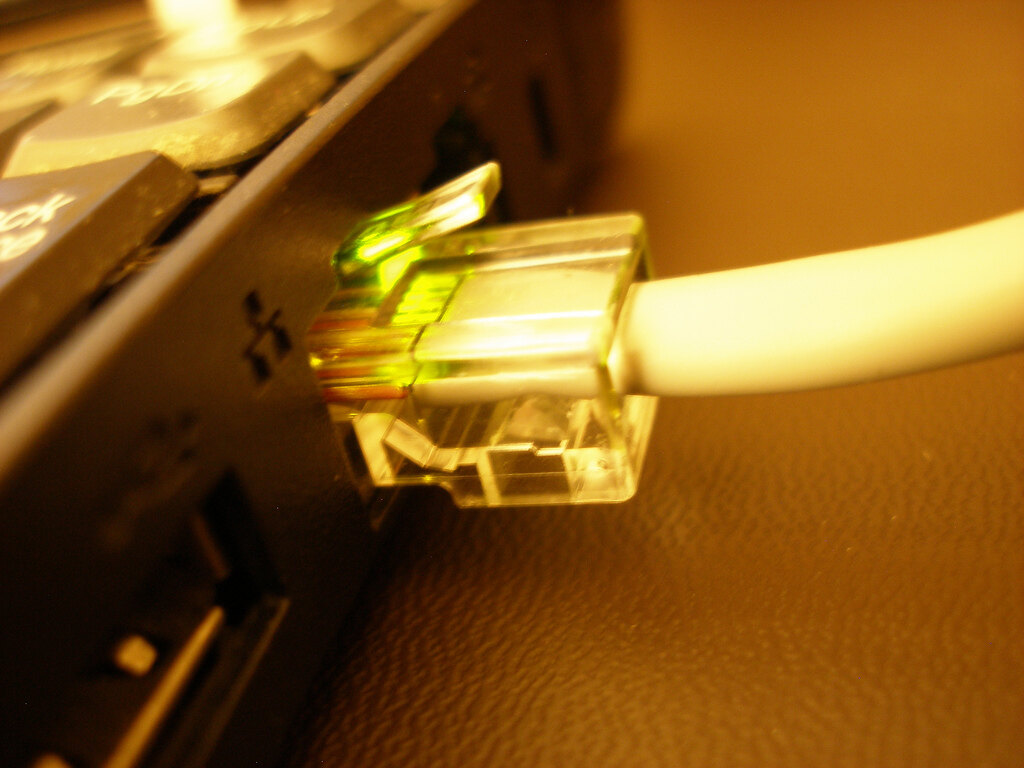

Ethernet is usually the more consistent connection for a fixed device because it avoids Wi-Fi interference, distance, walls, band steering, and competition for radio airtime.
That does not mean every Ethernet connection is faster.
A 100 Mbps Ethernet port can be slower than strong modern Wi-Fi. A poor USB adapter can cap a fast network. A damaged cable can negotiate at a lower speed. The internet plan can remain slower than both.
Quick answer: Use Ethernet for fixed devices where stability, predictable latency, or sustained local transfer matters. Use Wi-Fi for mobility and convenience. Check the complete path rather than assuming the cable automatically wins.
Local network speed versus internet speed
Ethernet and Wi-Fi describe the connection between your device and the local network.
The internet speed test also depends on:
- ISP plan
- Modem or optical terminal
- Router
- Network congestion
- Test server
- Remote service
- Device performance
A laptop linked to the router at 1 Gbps cannot download from the internet at 1 Gbps when the service plan delivers 100 Mbps.
Likewise, a 2.4 Gbps Wi-Fi link display does not mean the device will receive 2.4 Gbps of application data.
Ethernet advantages
Ethernet usually provides:
- Stable link rate
- Low variability
- No radio interference
- No signal loss through walls
- Predictable local transfers
- Better consistency for video meetings
- Better consistency for gaming
- Reliable backhaul for access points
- No roaming between access points
Google Meet recommends trying wired Ethernet when Wi-Fi video quality is poor.[1]
Microsoft describes Ethernet as a fast wired connection and recommends testing it when diagnosing network problems.[2]
Wi-Fi advantages
Wi-Fi provides:
- Mobility
- Easy phone and tablet access
- No cable to every device
- Flexible room arrangement
- Fast performance with current hardware
- Shared access for many mobile devices
- Convenient temporary connections
Modern Wi-Fi can be faster than an old Ethernet port in favorable conditions.
Do not replace good Wi-Fi with cable solely because one technology is newer or older.
The slowest-link rule
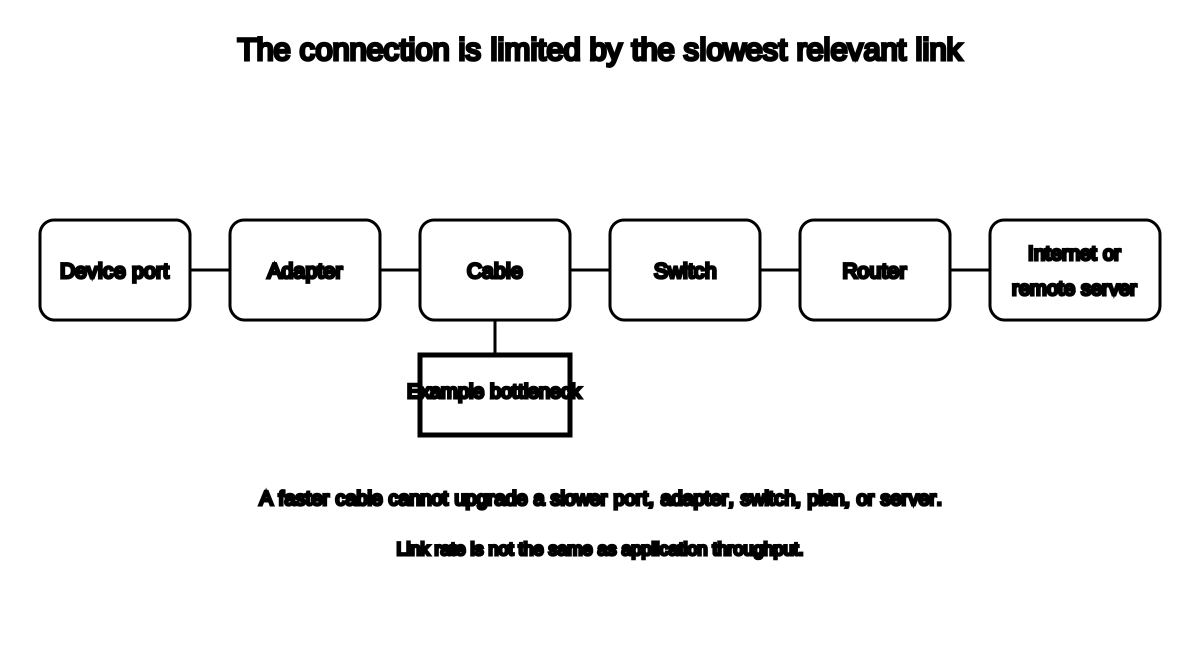

An Ethernet path may include:
- Device port
- USB or Thunderbolt adapter
- Cable
- Wall jack
- Patch panel
- Switch
- Router port
- Modem or gateway
- Internet plan
The connection is limited by the slowest relevant component.
Apple explains that 10 Gigabit Ethernet negotiates the highest speed supported by the connected device, cable type, technology, and cable length.[3]
That principle applies broadly: the label on one component does not upgrade every other part.
Common link speeds
Home Ethernet equipment may negotiate at:
- 10 Mbps
- 100 Mbps
- 1 Gbps
- 2.5 Gbps
- 5 Gbps
- 10 Gbps
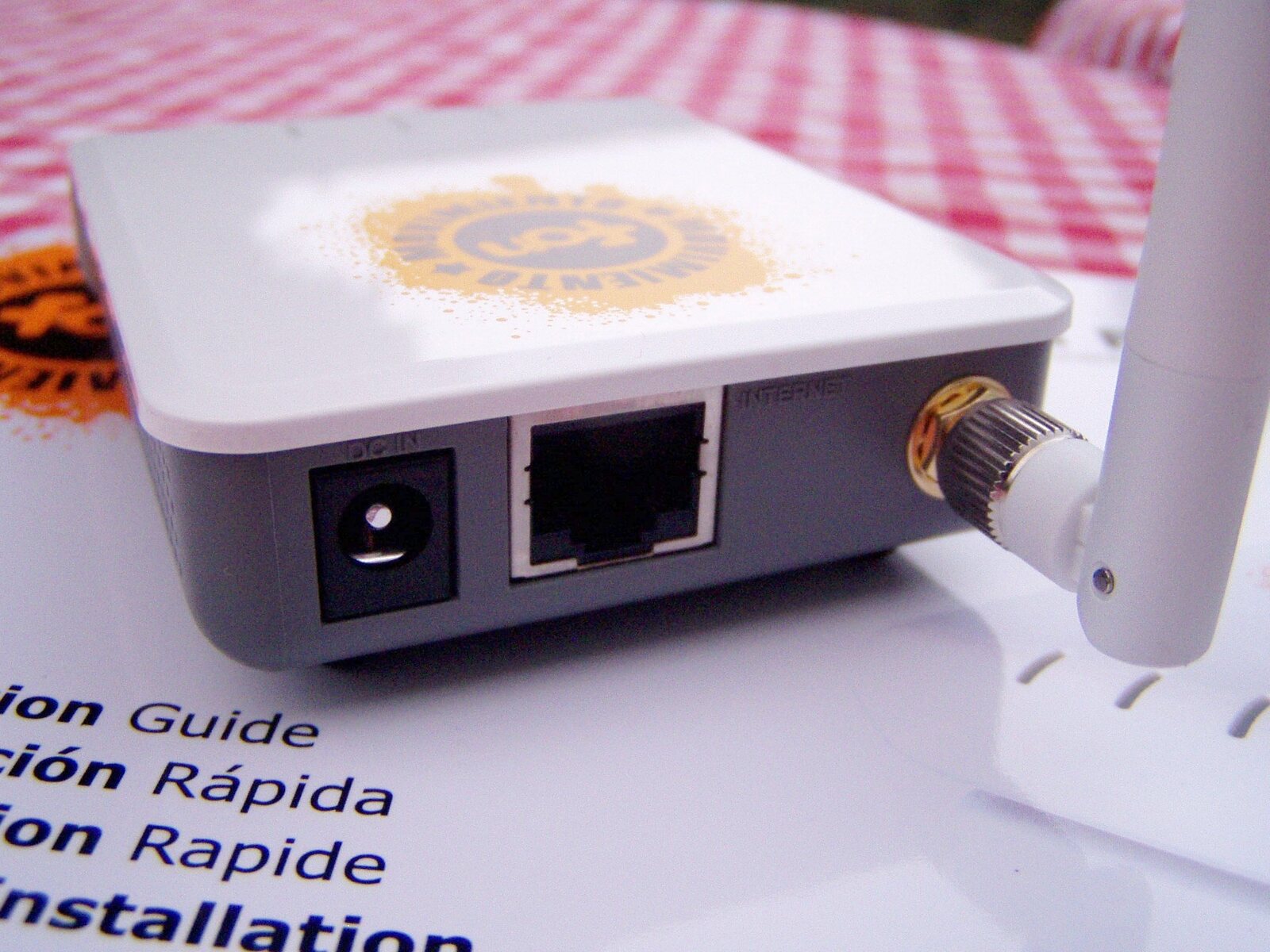
Do not assume every yellow router port is Gigabit.
Check:
- Router specification
- Switch specification
- Adapter specification
- Device link status
- Cable category and condition
Cable limits
Apple’s current 10 Gigabit Ethernet guidance gives these examples for compatible Mac hardware:
- Category 5e can support 1, 2.5, and 5 Gbps in the documented setup.
- Category 6 can support 10 Gbps up to 55 meters.
- Category 6a or later can support 10 Gbps up to 100 meters.[3]
Those are standards-oriented examples, not permission to assume every old installed cable will meet its category rating.
Termination quality, damage, interference, adapters, and equipment matter.
Do not buy premium fantasy cables promising faster internet beyond what the ports and service support.
USB adapters can be a bottleneck
A device without Ethernet may use:
- USB-A adapter
- USB-C adapter
- Thunderbolt adapter
- Dock
- Hub
Check:
- Ethernet speed
- Host-interface speed
- Driver support
- Operating-system support
- Power requirements
- Duplex
- Compatibility with the device
A “Gigabit Ethernet” adapter on a slow USB connection may not deliver full Gigabit application throughput.
Apple and Microsoft both document using Ethernet adapters on computers without built-in ports.[2][4]
Ethernet does not fix the internet
Ethernet can reveal whether Wi-Fi is the problem.
If Ethernet is also slow:
- Check internet service
- Check modem or gateway
- Check router WAN port
- Check cable
- Check device
- Check background traffic
- Contact ISP when appropriate
Do not upgrade every Wi-Fi device because the provider connection is congested.
Ethernet does not eliminate latency
Ethernet often reduces local wireless delay and variability, but total latency includes:
- Device processing
- Router queues
- Modem
- ISP network
- Internet route
- Remote server
- VPN
- Application processing
A wired connection cannot move a distant server closer.
Wi-Fi can be sufficient
Strong Wi-Fi is often sufficient for:
- Web browsing
- Streaming
- Ordinary video calls
- Phones and tablets
- Smart-home devices
- Moderate downloads
- General household use
Use Ethernet where the practical gain matters.
Best devices to wire
Good candidates include:
- Desktop computer
- Workstation
- Game console
- Television
- Streaming box
- Network-attached storage
- Printer
- Access point
- Mesh backhaul
- Home-office dock
Wire fixed high-traffic devices and leave radio capacity for mobile devices.
Ethernet installation safety
Do not:
- Run ordinary cable through heating ducts
- Create trip hazards
- Pin cable under doors
- Use damaged connectors
- Route indoor cable outdoors
- Run low-voltage cable beside hazardous electrical wiring without following code
- Drill blindly into walls
- Use non-rated cable in walls or plenums
For permanent in-wall installation, follow local code and use the correct cable rating.
How to compare fairly
- Use one device.
- Test Wi-Fi beside the router.
- Connect by Ethernet.
- Use the same test server.
- Pause background traffic.
- Run several tests.
- Compare download, upload, latency, and stability.
- Check negotiated Ethernet link speed.
The fastest single test is less useful than repeatable performance.
Frequently asked questions
Is Ethernet always faster than Wi-Fi?
No. Ethernet is limited by its ports, adapter, cable, switch, and internet service. Strong modern Wi-Fi can exceed 100 Mbps Ethernet.
Does Ethernet improve gaming?
It often reduces wireless variability and interference. Internet routing and server latency still matter.
Does Cat 8 make home internet faster?
Not when the ports, router, switch, and service are slower. Buy cable appropriate to the actual link and installation.
Can a USB Ethernet adapter be slower?
Yes. Adapter and host-interface limits matter.
Should every device use Ethernet?
No. Wire fixed devices that benefit. Wi-Fi exists because humans eventually objected to dragging cables behind phones.
Related guides
Source notes
- Troubleshoot video and audio quality in a meetingGoogle Meet Help
- Fix Ethernet connection problems in WindowsMicrosoft Support
- About the 10 Gigabit Ethernet port on MacApple Support
- Connect your Mac to the internet using EthernetApple Support
- Wi-Fi and your home layoutMicrosoft Support
See something wrong or out of date? Report a correction.