
Why Does My Wi-Fi Keep Disconnecting?
Test another device during the next drop. If only one device disconnects, troubleshoot that device. If every device drops, inspect the router, modem, power, cables, heat, and provider service. If Wi-Fi stays connected but the internet disappears, the modem or ISP is the stronger suspect.
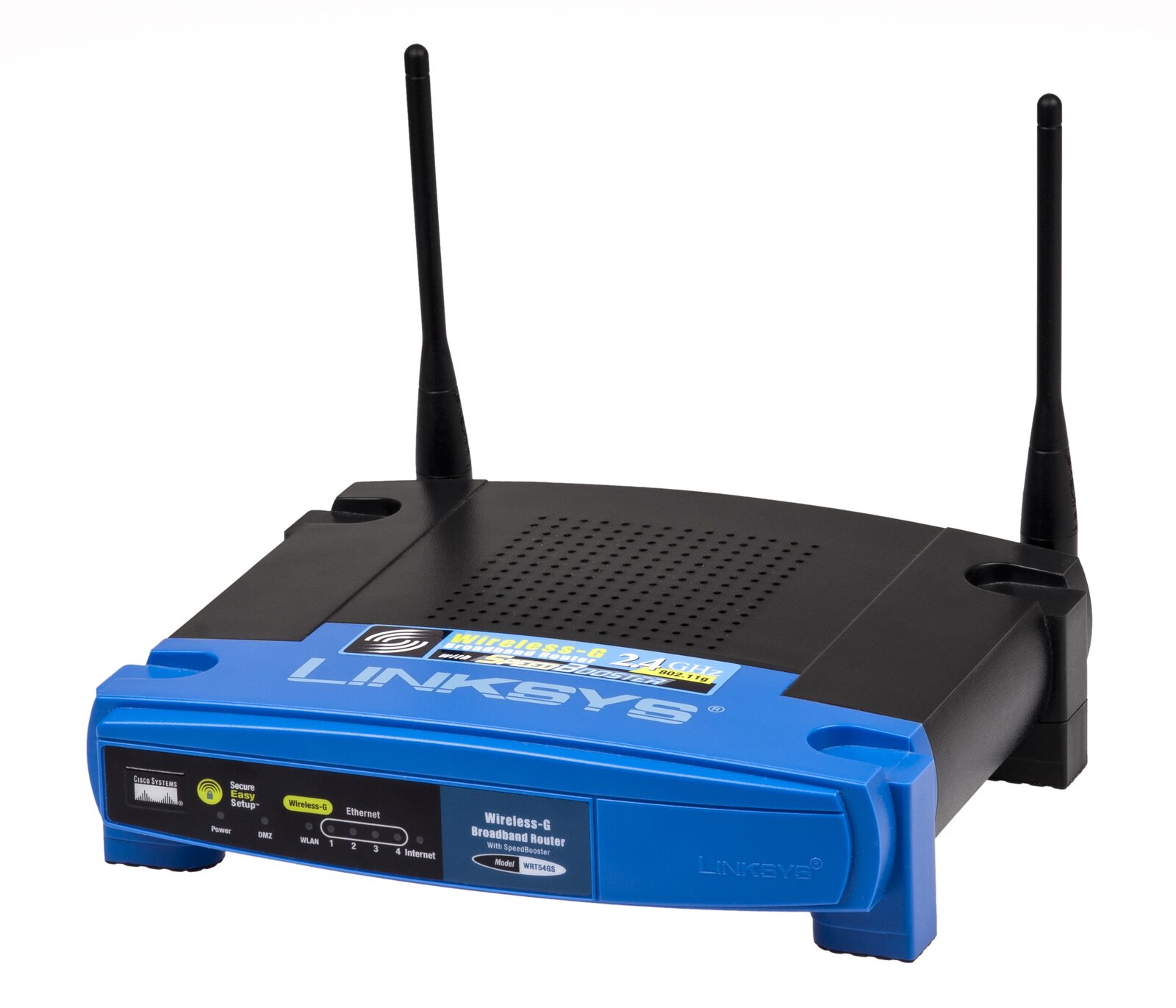

Wi-Fi disconnections usually fall into one of three groups:
- One device loses the network
- Every device loses Wi-Fi
- Devices remain connected to Wi-Fi but lose internet access
Those are different failures. Start by identifying which one you have.
Quick answer: Test another device during the next drop. If only one device disconnects, troubleshoot that device. If every device drops, inspect the router, modem, power, cables, heat, and provider service. If Wi-Fi stays connected but the internet disappears, the modem or ISP is the stronger suspect.
What exactly disappears?
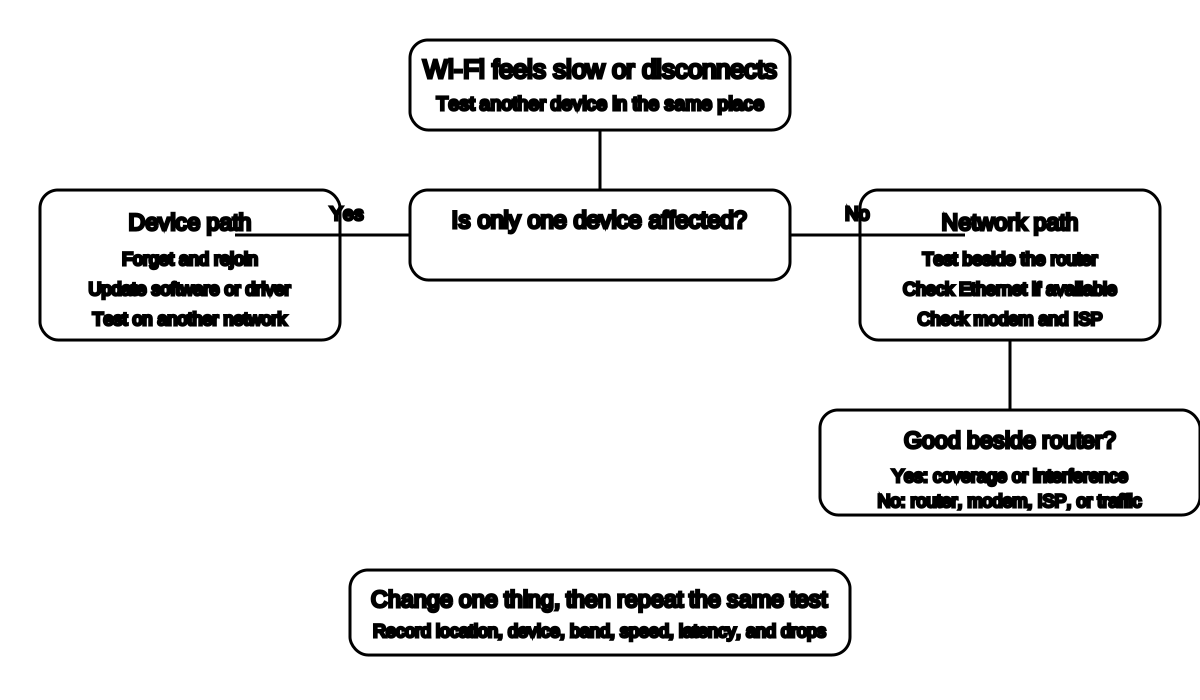
First determine whether one device, every Wi-Fi device, or the internet connection is disappearing.
Watch the device during a failure.
| Symptom | What it suggests |
|---|---|
| Wi-Fi icon disappears | Device or radio connection dropped |
| Wi-Fi icon remains but says “No internet” | Router-to-internet or ISP problem |
| One app stops but other sites work | App or remote service problem |
| All devices disconnect together | Router, power, modem, or provider |
| Disconnects happen in one room | Weak coverage or interference |
| Device switches to cellular data | Wi-Fi became unavailable or the device chose cellular fallback |
Write down the exact symptom before restarting everything. A useful clue often vanishes with the reboot.
1. Check whether other devices disconnect
Apple, Google, and Microsoft recommend trying the network on another device to separate a device problem from a network problem.[1][2][3]
During the next failure:
- Check a second phone or laptop.
- Check whether a wired device still works.
- Check whether the router’s Wi-Fi light changed.
- Check whether the modem shows a service warning.
If only one device fails, skip to the device-specific section.
2. Move closer to the router
A device near the edge of coverage may repeatedly lose and regain the signal.
Test:
- In the problem room
- Halfway to the router
- Beside the router
If the drops stop near the router, focus on placement, obstacles, and dead-zone fixes rather than factory-resetting the network.
3. Try another band
A distant device may be clinging to 5 GHz when 2.4 GHz would be more stable. A nearby device may perform better on 5 GHz when 2.4 GHz is congested.
Apple and Microsoft both include trying another frequency band in troubleshooting guidance.[1][3]
Your router may combine all bands under one network name. If so, use the router or device’s official diagnostics rather than permanently renaming bands without a plan.
4. Restart the modem and router
For a temporary fault, restart in the supported order.
For separate devices:
- Unplug router power.
- Unplug modem power.
- Wait about 30 seconds.
- Reconnect the modem and wait for normal status.
- Reconnect the router and wait for normal status.[3]
Do not use the recessed factory-reset button.
If disconnects return quickly, the restart treated a symptom rather than the cause.
5. Check power and heat
A loose adapter or overheating router can create intermittent failures.
Check:
- Power connector
- Power strip
- Wall outlet
- Ventilation
- Dust around vents
- Equipment stacked on the router
- Direct sun or nearby heat source
- Whether lights go dark during a drop
Use only the approved power supply. Do not substitute an adapter merely because the plug fits.
6. Check the modem-to-router cable
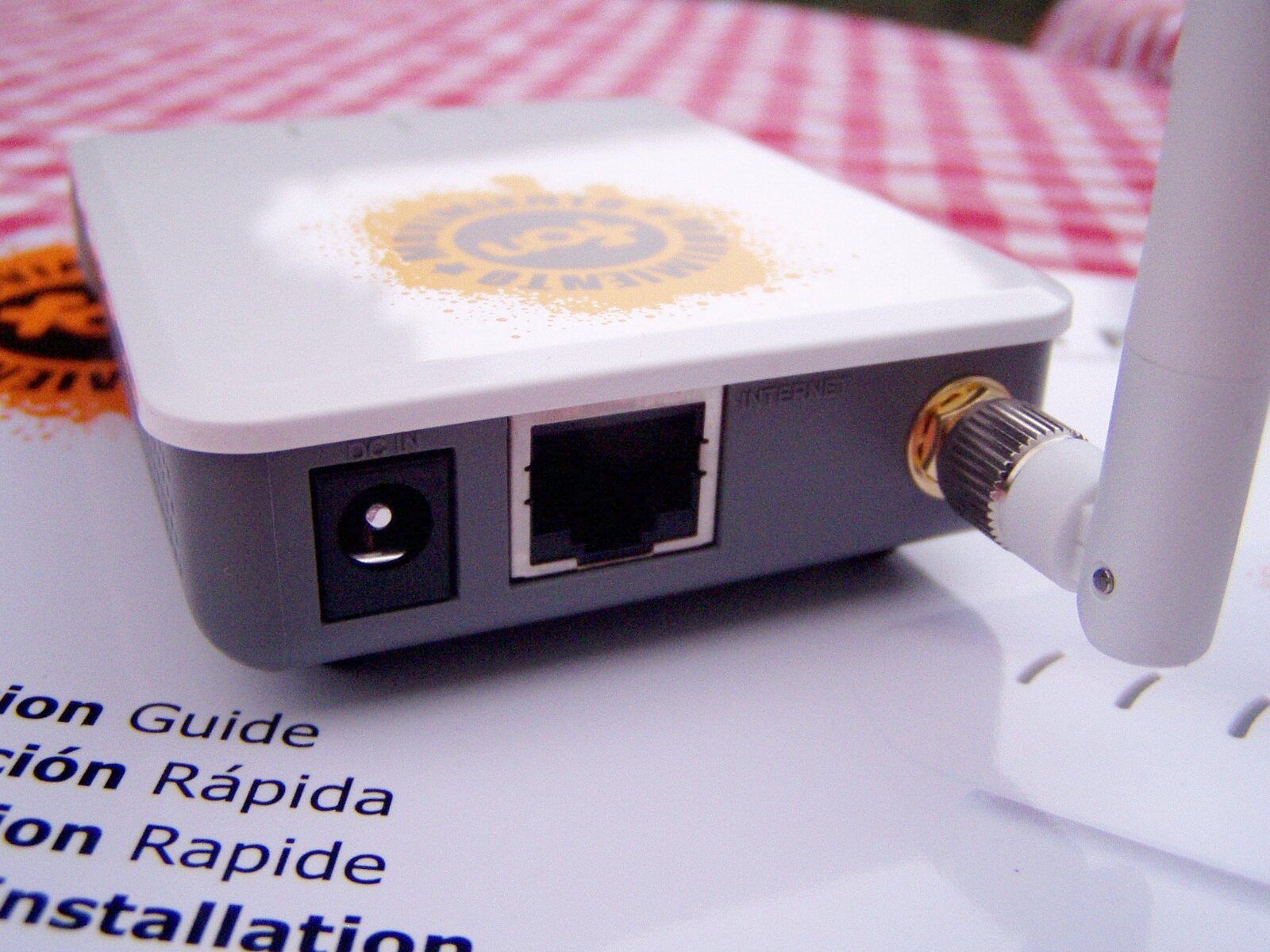

A loose or damaged Ethernet cable can make Wi-Fi appear healthy while internet access drops.
- Reseat the cable.
- Inspect the retaining clips.
- Look for sharp bends or crushing.
- Try a known-good compatible cable if you have one.
- Confirm the cable is in the correct WAN or internet port.
Photograph the connections first.
7. Forget and rejoin the network
On one problem device:
- Confirm you know the password.
- Forget the saved network.
- Rejoin it.
- Test again.
Apple notes that forgetting and rejoining can help a device use new router settings.[4]
On devices connected through a shared account or keychain, forgetting a network can affect other devices too.
8. Check device power saving
Some computers reduce wireless-adapter power to save battery. This can contribute to repeated drops on certain hardware.
Microsoft documents wireless-adapter power settings as one troubleshooting area for frequent disconnections.[3]
Use the device manufacturer’s guidance. Do not randomly disable power-management features across every system.
9. Update router firmware and device software
Updates can resolve compatibility and stability problems.
- Update the router through its manufacturer or ISP.
- Enable automatic router updates where supported.
- Update the operating system.
- Update the Wi-Fi driver from the computer manufacturer or operating-system update service.
- Replace unsupported routers that no longer receive security fixes.
The FTC and Apple both recommend keeping router firmware current.[4][5]
10. Check for one network-management device
A typical home network should not have two routers both trying to assign addresses unless deliberately configured.
Apple recommends one DHCP server on the network. Multiple DHCP servers can create address conflicts that prevent reliable access.[4]
This can happen when:
- A new router is added behind an ISP gateway
- An old router is reused without access-point mode
- A mesh system is connected incorrectly
- A modem-router combo and separate router both perform routing
Do not change routing, DHCP, bridge, or access-point settings unless you understand the current topology and can restore it.
11. Use device-specific diagnostics
Windows
Microsoft recommends:
- Network and Internet troubleshooter
- Forget and reconnect
- Testing another band
- Updating Windows
- Checking drivers
- Using network reset only after less destructive steps[3]
Network reset removes network adapters and settings, so it belongs near the end.
iPhone or iPad
Apple recommends:
- Confirm Wi-Fi and Airplane Mode settings
- Restart the device
- Try another band where available
- Restart the router and modem
- Reset network settings only after other steps[1]
Resetting network settings removes saved Wi-Fi networks, passwords, cellular settings, VPN settings, and APN settings.
Mac
Use Wireless Diagnostics. Apple states that it analyzes the connection and offers possible solutions without changing network settings.[6]
Pixel or Android
Google recommends testing:
- Whether other devices work
- Whether the phone works on another network
- Forgetting and rejoining
- Restarting phone, router, and modem
- Resetting Bluetooth and Wi-Fi settings only after simpler steps[2]
Android menus vary by manufacturer and version.
12. Check the ISP and modem
If every device loses internet while remaining connected to Wi-Fi:
- Look for provider outages.
- Check modem status lights.
- Compare with a wired device.
- Contact the ISP.
- Ask whether the modem signal or line shows errors.
- Ask whether provider-managed firmware is current.
Record the time of each drop. A pattern can help the provider find a line or neighborhood problem.
Security settings can affect reliability
Use current security:
- WPA3 Personal where supported
- WPA2/WPA3 Transitional when older devices require compatibility
- WPA2 Personal with AES when newer modes are unavailable
Avoid WEP, WPA, TKIP, open networks, and weak mixed modes. Apple notes that deprecated security can reduce security, reliability, and performance.[4]
The FTC also recommends changing the router’s default administrative password and using WPA3 or WPA2 encryption.[5]
When to factory-reset
Factory reset is a last resort when:
- The manufacturer or ISP instructs you to do it
- You have the setup information
- Supported firmware cannot recover the configuration
- You can reconnect every required device
- You have documented important settings
Do not factory-reset a provider gateway moments before work, school, or telehealth because a forum comment used the word “easy.”
Frequently asked questions
Why does Wi-Fi disconnect only on one phone?
The saved profile, device software, VPN, power management, or hardware may be responsible. Test the phone on another Wi-Fi network.
Why does Wi-Fi drop when I move between rooms?
The device may be crossing a weak area or switching between access points or bands. Test placement and roaming behavior.
Why does the Wi-Fi icon stay on when the internet stops?
The local wireless connection is still active, but the router or modem lost internet access.
Can overheating cause router disconnects?
Yes, heat or unstable power can cause reboots or unreliable operation. Keep vents open and use the approved power supply.
Will a factory reset fix repeated drops?
It may fix corrupt configuration, but it also erases settings and cannot repair a provider outage, poor placement, bad cable, or failing hardware.
Related Wi-Fi guides
- Use the broad slow Wi-Fi diagnosis
- Compare 2.4 GHz and 5 GHz Wi-Fi
- Test a better router location
- Use the printable dead-zone checklist
Source notes
- If you can't connect to Wi-Fi on your iPhone or iPadApple Support
- How to fix Wi-Fi connection problemsGoogle Pixel Help
- Fix Wi-Fi connection issues in WindowsMicrosoft Support
- Recommended settings for Wi-Fi routers and access pointsApple Support
- How To Secure Your Home Wi-Fi NetworkFederal Trade Commission
- Use Wireless Diagnostics on your MacApple Support
See something wrong or out of date? Report a correction.