
Where Should You Place a Wi-Fi Extender?
Set up the extender near the router first. Then move it toward the weak room until the router-link indicator still shows a good connection. Test both the extender's upstream link and the client connection.
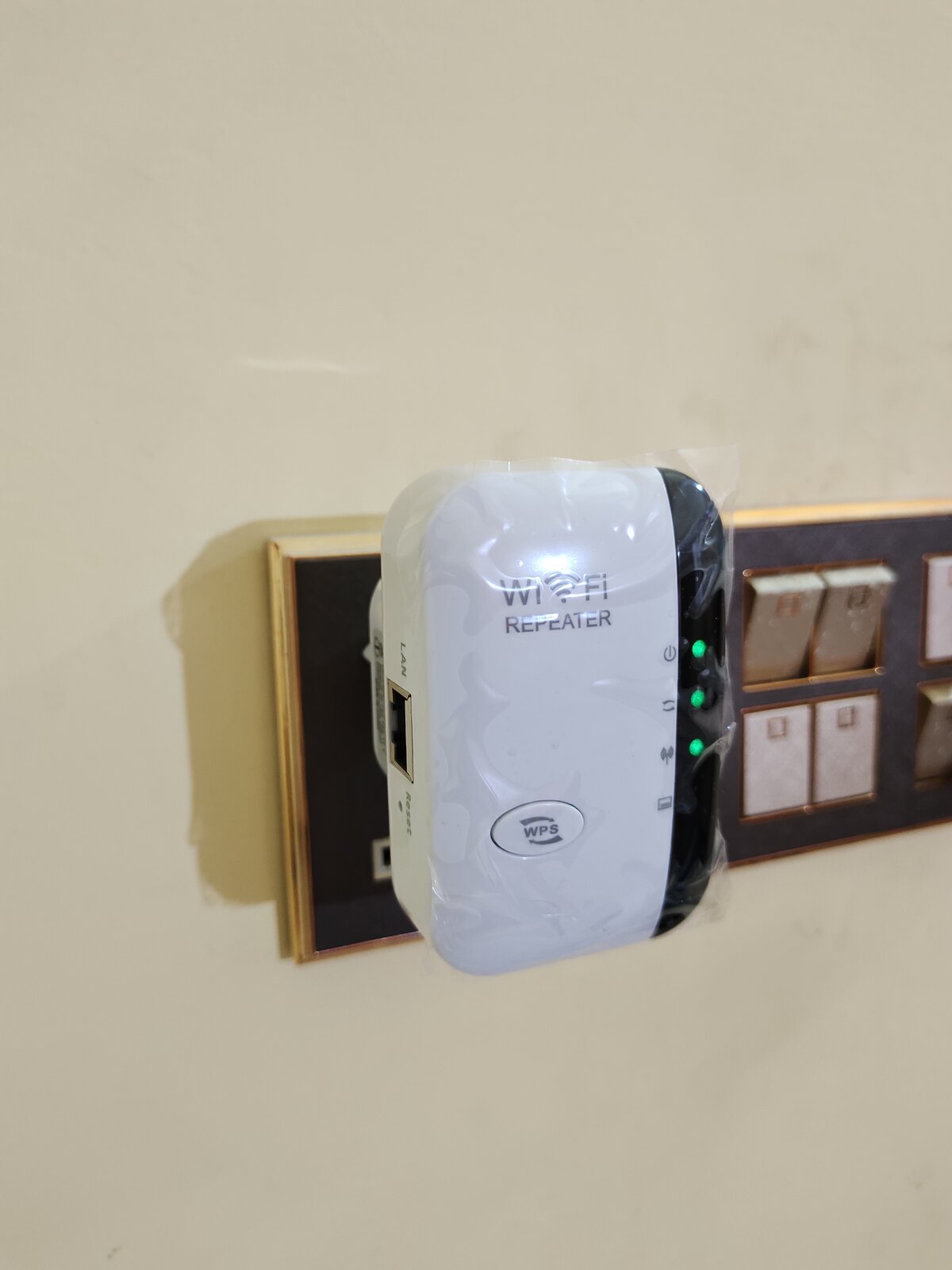

Place a Wi-Fi extender roughly halfway between the router and the weak area, but only where it still receives a reliable signal from the router.
Do not put the extender inside the dead zone. It cannot rebroadcast a useful connection it does not receive.
Quick answer: Set up the extender near the router first. Then move it toward the weak room until the router-link indicator still shows a good connection. Test both the extender’s upstream link and the client connection.
“Halfway” is a starting point
NETGEAR and TP-Link both advise placing an extender roughly halfway between the router and the problem area while remaining inside the router’s wireless range.[1][2][3]
The correct position may be:
- Closer to the router
- Closer to the client
- In a hallway
- Near a doorway
- On another floor
- At a different height
Walls and outlets do not arrange themselves for networking convenience.
The extender needs two good links
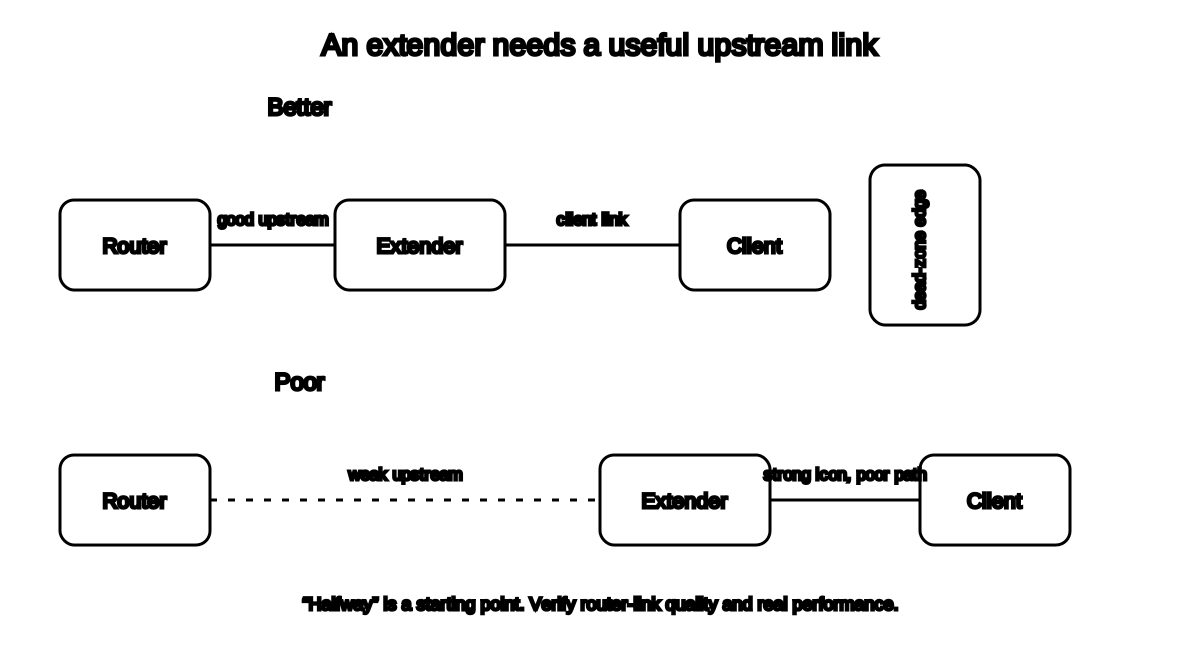
A wireless extender has:
- Upstream link: extender to router
- Client link: phone, laptop, television, or other device to extender
A strong client-to-extender connection is useless if the extender’s router connection is poor.
Check:
- Router-link LED
- Signal indicator
- Setup app
- Extender status page
- Actual speed and stability
Use the model’s instructions. LED colors and meanings differ.
Set up near the router first
Many official setup guides instruct users to:
- Plug the extender near the router.
- Complete pairing and firmware checks.
- Confirm it works.
- Move it to the intended location.[2][4]
This separates setup failure from placement failure.
Do not factory-reset the extender merely because the first outlet is poor.
Move outward gradually
Test a sequence:
- Same room as router
- Hallway or room between
- Midpoint
- Closer to weak area
At each location:
- Wait for startup.
- Check router-link quality.
- Connect a device.
- Run repeatable tests.
- Record band and network name.
- Test the original weak area.
Stop moving outward when upstream quality becomes weak or unstable.
Avoid obstacles
Keep the extender away from:
- Large metal objects
- Refrigerators
- Microwaves
- Dense masonry
- Mirrors
- Aquariums
- Cabinets
- Floors
- Crowded power strips
- Heat and moisture
A direct path through fewer dense obstacles is better than a geometrically perfect midpoint behind a refrigerator.
Outlet location
Plug-in extenders are limited by outlet placement.
Use:
- A stable wall outlet
- Manufacturer-approved orientation
- Adequate ventilation
- Clear access to buttons and lights
Do not:
- Use an extension cord unless approved
- Hide it behind furniture that blocks airflow
- Put it near water
- Overload the outlet
- Remove grounding features
If the correct radio location has no outlet, a different network solution may be more appropriate.
Why speed may be lower
TP-Link explains that a wireless extender adds another wireless hop, so client performance can be lower than a direct router connection.[5]
The exact effect depends on:
- Radio bands
- Dedicated backhaul
- Channel use
- Router and extender standards
- Signal quality
- Client capability
- Traffic
- Interference
Do not expect the extender to reproduce the router’s maximum speed at a distant location.
The goal may be a stable usable connection where none existed.
Backhaul matters
Backhaul is the connection from extender to router.
It may be:
- Wireless 2.4 GHz
- Wireless 5 GHz
- Wireless 6 GHz
- Dedicated radio
- Ethernet, when supported
- Another model-specific method
A dedicated or wired backhaul can avoid some wireless-relay limitations, but exact behavior depends on the product.
Do not assume an Ethernet port means the extender supports access-point mode or wired backhaul. Check the manual.
Same network name or separate name?
Some extenders:
- Use the router’s network name
- Add
_EXT - Create separate band names
- Support a vendor-specific one-name mode
A shared name does not guarantee seamless roaming.
The phone or laptop may cling to the weaker access point until its own roaming logic decides to switch.
For diagnosis, separate names can help reveal which radio serves the device. For normal use, follow the manufacturer’s recommended configuration.
Compatibility limits
A generic extender may connect to many routers, but features can differ.
Check:
- Supported bands
- Security modes
- WPA3 support
- Channel width
- Mesh or EasyMesh support
- Vendor roaming features
- Guest-network behavior
- MAC filtering
- Parental controls
- IPv6
- Firmware support
- Regional power and radio rules
NETGEAR notes that broad router compatibility does not eliminate band and regional considerations.[4]
Do not weaken the entire network to WEP, WPA, or TKIP for an obsolete extender.
Update firmware
Before final placement:
- Update the router.
- Update the extender.
- Confirm support status.
- Save settings if supported.
- Change default administrator credentials.
- Use current WPA2 or WPA3 security.
An extender becomes another network-management device that must be maintained.
How to test final placement
Test:
- Beside the router
- At the extender
- In the weak room
- One room beyond
- During normal busy periods
Record:
- Download
- Upload
- Latency
- Disconnects
- Connected SSID
- Connected band
- Link indicator
- Device switching behavior
Compare with the Batch 2 dead-zone checklist.
When an extender is the wrong solution
Consider another design when:
- The extender cannot receive a good upstream signal.
- Thick concrete or metal blocks the path.
- High throughput is required.
- Seamless roaming matters.
- Several distant areas need coverage.
- Existing Ethernet can support an access point.
- The router itself is unsupported or unstable.
- Multiple extenders would be chained.
Frequently asked questions
Should the extender go in the dead zone?
No. It needs a usable router signal.
Is exactly halfway always correct?
No. Halfway is a starting point. Use link quality and tests.
Can the extender be closer to the weak room?
Yes, if its router link remains good.
Will an extender give the same speed as the router?
Not necessarily. Wireless repeating adds another link and may reduce throughput.
Can I use the same Wi-Fi name?
Some models support it. Same-name operation does not guarantee seamless roaming.
Related guides
- Choose a better router location
- Diagnose repeated Wi-Fi disconnects
- Try free Wi-Fi dead-zone fixes
- Use the appliance electricity cost calculator
Source notes
- Where should I place my NETGEAR WiFi range extender?NETGEAR Support
- How do I set up my NETGEAR WiFi range extender?NETGEAR Support
- How to Boost Your Wi-Fi Signal: Range Extender, Powerline, or MeshTP-Link Support
- NETGEAR WiFi Range Extender Frequently Asked QuestionsNETGEAR Support
- Why is my Range Extender not getting the same speed as the main router?TP-Link Support
- Range extender placement troubleshootingTP-Link Support
See something wrong or out of date? Report a correction.