
Home Wi-Fi Dead-Zone Checklist
A Wi-Fi dead zone is easier to fix when you record what changes from room to room.
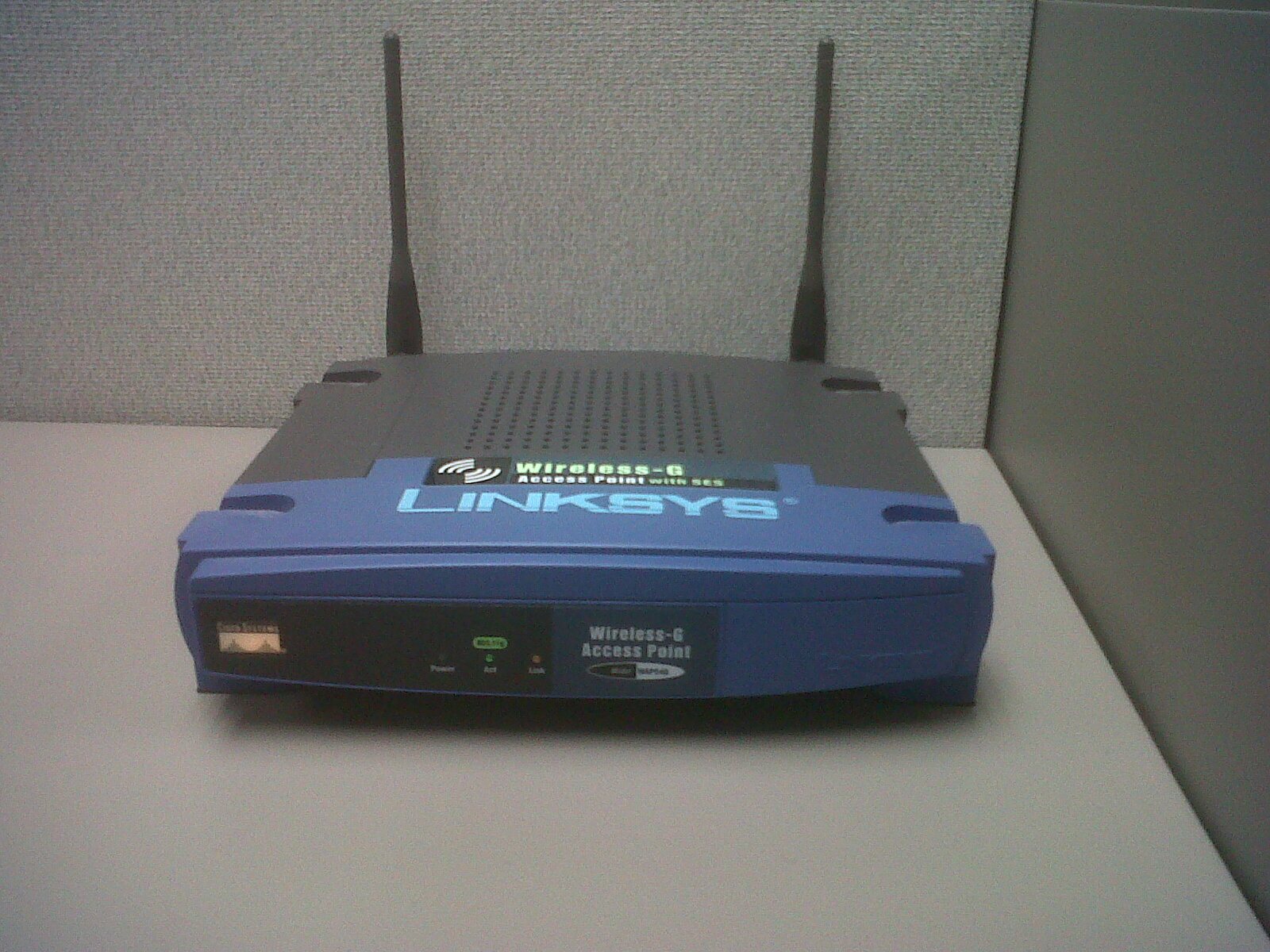

A Wi-Fi dead zone is easier to fix when you record what changes from room to room.
This checklist helps you separate:
- Internet-service problems
- Router-placement problems
- Weak coverage
- One-device problems
- Interference
- Band-selection problems
Download: Home Wi-Fi Dead-Zone Checklist (PDF)
Printable PDF, no email address required.
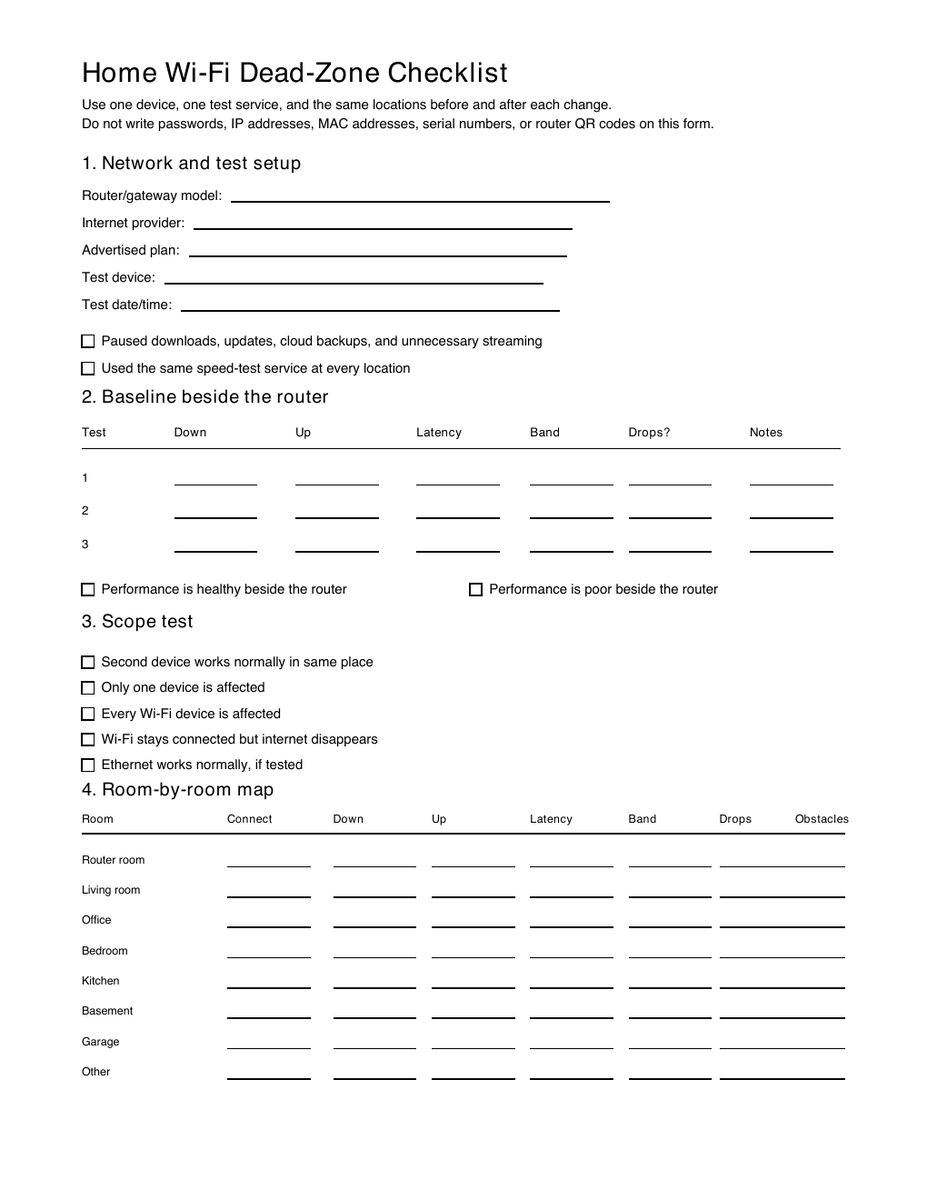
Before you start
Gather:
- One primary test device
- One second device
- Router and modem model numbers
- Wi-Fi password
- Notebook or printable checklist
- Ethernet cable, if already available
- Router or ISP app, if used
- Manufacturer manuals
Pause:
- Large downloads
- Game updates
- Cloud backups
- Unnecessary streaming
- VPN, if safe and permitted, for a comparison test
Do not expose passwords, public IP addresses, device serial numbers, or private network details in screenshots.
Part 1: Identify the network
- Router or gateway model: ______________________________
- Modem model, if separate: ______________________________
- Internet provider: ____________________________________
- Advertised plan speed: _________________________________
- Primary network name: _________________________________
- Test date: ____________________________________________
- Test device: __________________________________________
- Second device: ________________________________________
Do not write the Wi-Fi or administrator password on the public checklist.
Part 2: Establish the baseline
Stand beside the router.
Run three tests using the same service.
| Test | Download | Upload | Latency | Band | Disconnect? |
|---|---|---|---|---|---|
| 1 | |||||
| 2 | |||||
| 3 |
Middle or median result:
- Download: __________
- Upload: __________
- Latency: __________
- Band: __________
If performance is poor beside the router, use Why Is My Wi-Fi So Slow? before treating this as a dead zone.
Part 3: Check another device
At the same location:
- Second device connects
- Second device has similar performance
- Only the primary device is slow
- Both devices are slow
- One device cannot see the network
- One device supports only 2.4 GHz
Notes: ___________________________________________________
Part 4: Map important rooms
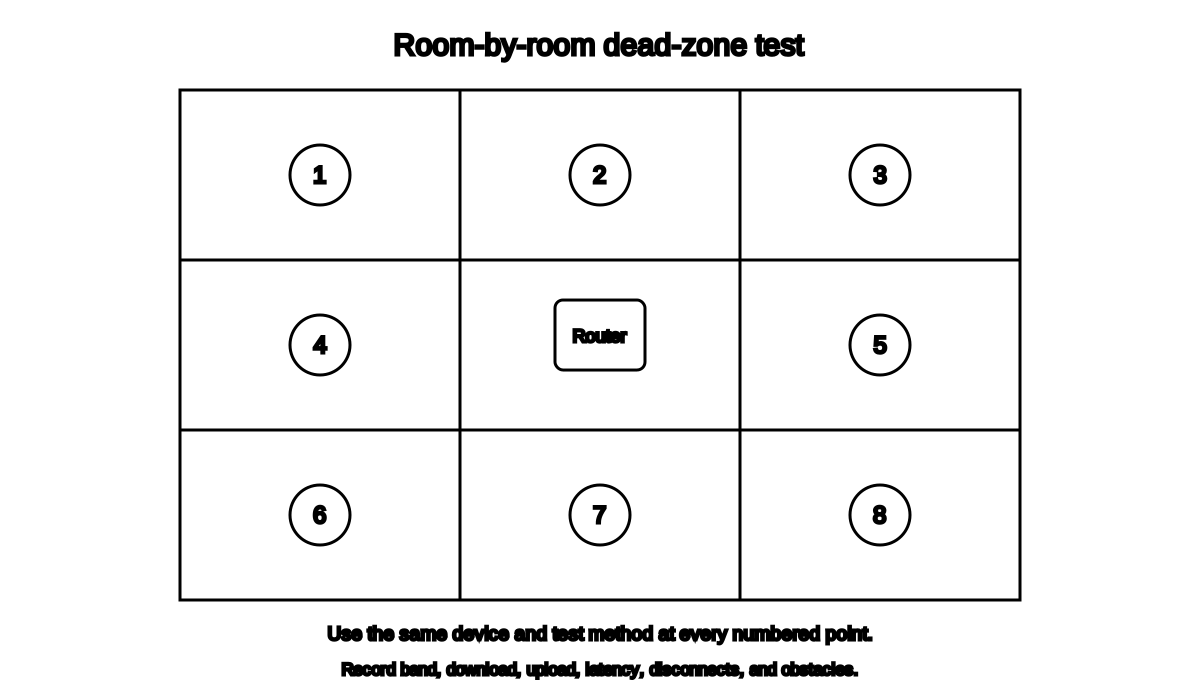
Use the same device and method at every location so before-and-after results remain comparable.
Use one row for each location.
| Location | Connects? | Download | Upload | Latency | Band | Drops? | Obstacles |
|---|---|---|---|---|---|---|---|
| Router room | |||||||
| Living room | |||||||
| Home office | |||||||
| Main bedroom | |||||||
| Other bedroom | |||||||
| Kitchen | |||||||
| Basement | |||||||
| Garage | |||||||
| Other |
Part 5: Record the router location
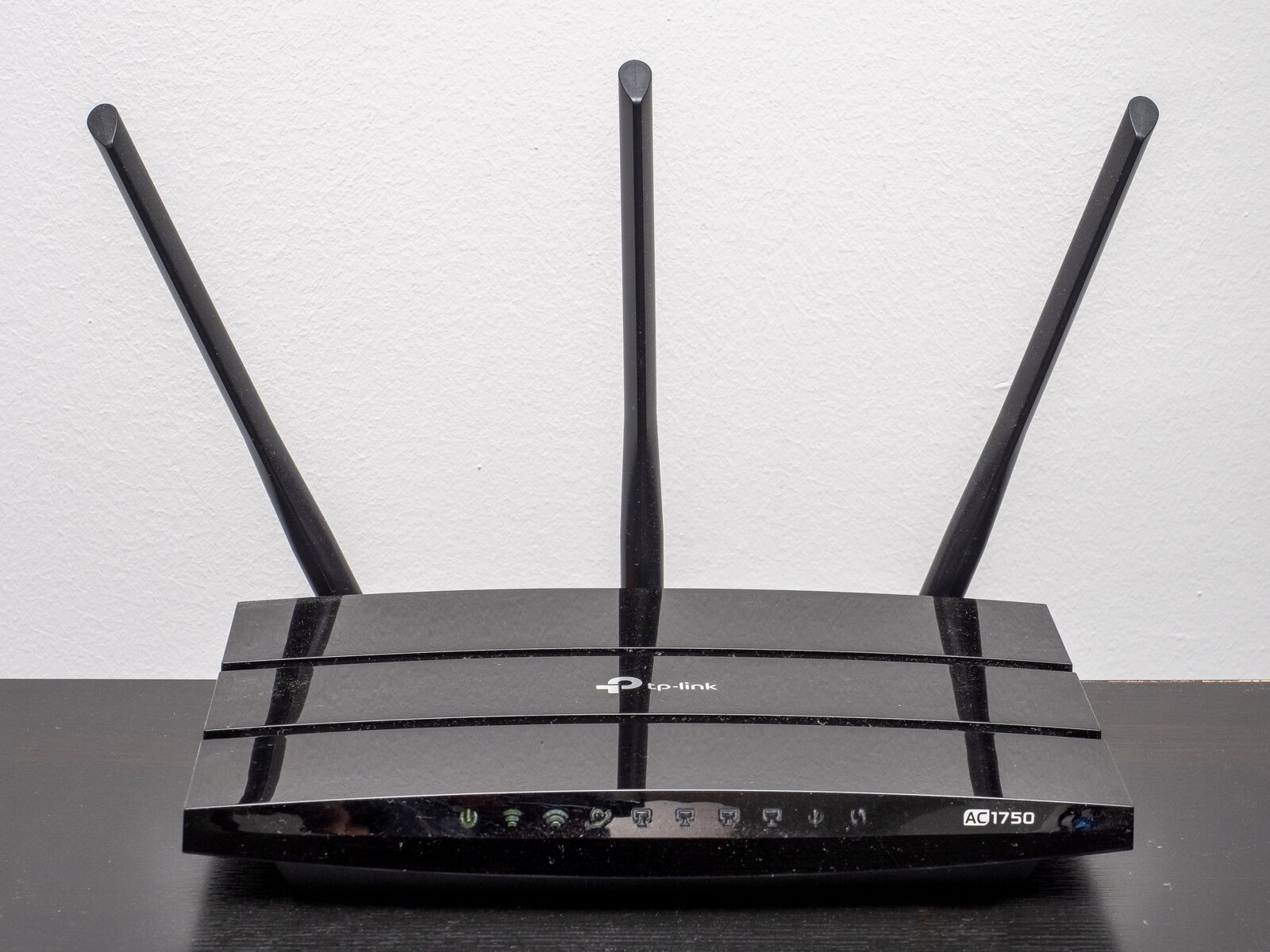
.jpg)
- Near the center of important rooms
- Out in the open
- Off the floor
- Not behind a television
- Not inside a closed cabinet
- Away from large metal objects
- Away from microwave
- Away from aquarium
- Adequately ventilated
- Power and Ethernet cables secure
Current location notes: ___________________________________
Part 6: Test free placement changes
For each change, retest the worst important room.
| Change | Before | After | Better? | Keep? |
|---|---|---|---|---|
| Move toward center | ||||
| Raise router | ||||
| Remove enclosure | ||||
| Move away from TV | ||||
| Move away from metal/appliance | ||||
| Test stairwell/hallway location | ||||
| Change client position |
Part 7: Test another band
- Tested 2.4 GHz
- Tested 5 GHz
- Tested 6 GHz, if supported
- Router uses one name for all bands
- Router uses separate names
- Device does not reveal band
- Manufacturer requires a specific band
Result: __________________________________________________
Part 8: Restart and update
- Restarted modem and router using supported instructions
- Checked router firmware
- Checked automatic-update setting
- Updated test device
- Updated computer Wi-Fi driver through official source
- Confirmed router still receives security support
- Did not factory-reset
Part 9: Separate Wi-Fi from internet service
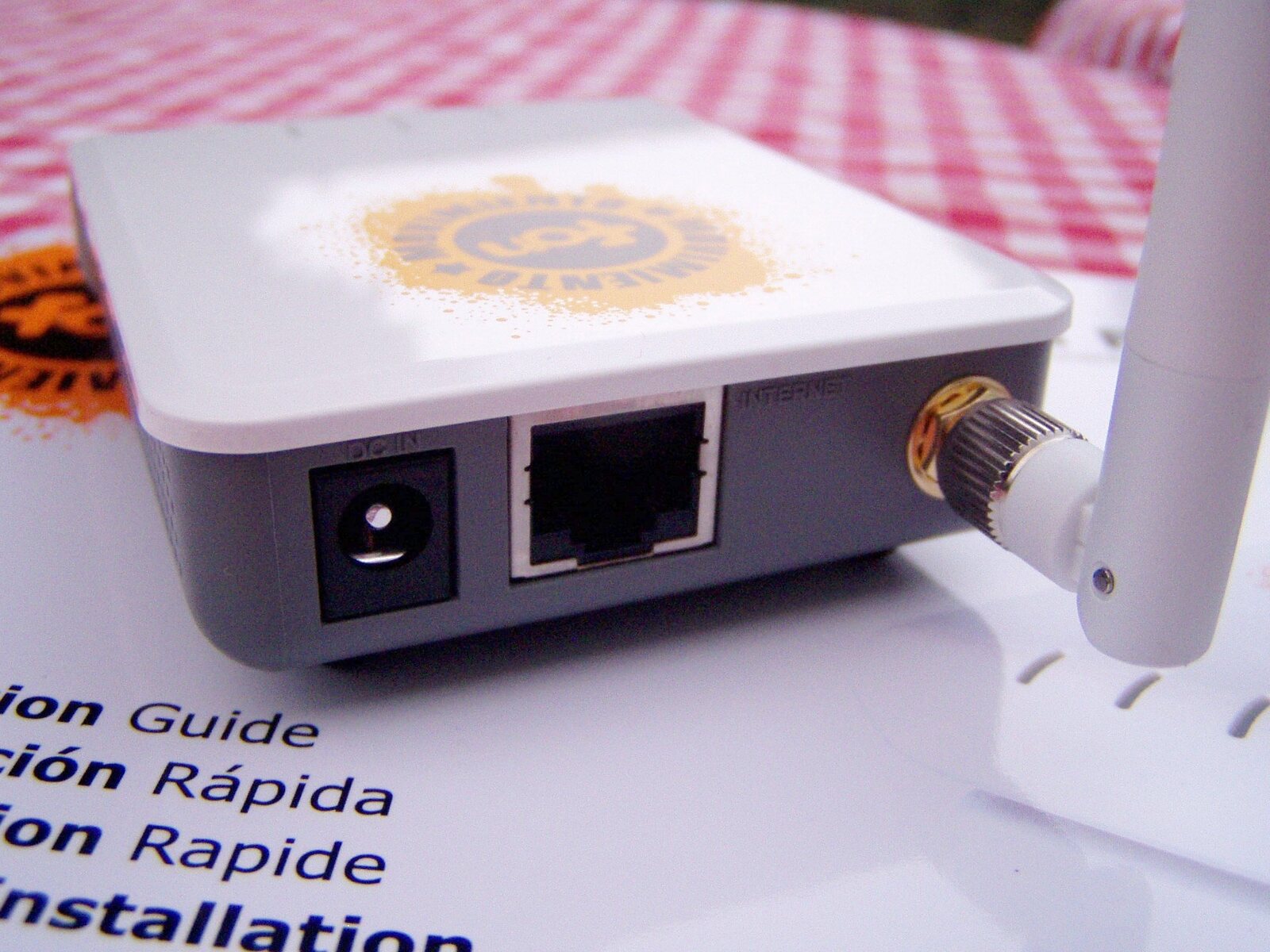

- Tested by Ethernet
- Ethernet is healthy
- Ethernet is also slow
- Modem status lights normal
- ISP outage checked
- Every device affected
- Only distant rooms affected
Likely category:
- Device problem
- Wi-Fi coverage problem
- Router problem
- Modem or provider problem
- Interference or congestion
- Unclear; more observation needed
Part 10: Decide the next action
Keep testing free changes when:
- Moving the router improved the worst room
- Another band improved stability
- One device is the only problem
- An obstruction can still be removed
- Existing Ethernet can serve fixed devices
Contact the ISP when:
- Ethernet is also slow
- Every device loses internet together
- Modem lights show a fault
- Provider equipment cannot update
- Repeated tests remain far below the plan
Consider additional hardware when:
- Important rooms remain weak after placement changes
- Building materials block the signal
- Router cannot be relocated
- Existing Ethernet could support an access point
- One access point cannot cover the required area
Final notes
Best current router location: ______________________________
Worst remaining room: ____________________________________
Most useful change: ______________________________________
Next action: _____________________________________________
Safety and privacy notes
- Keep passwords off the printed checklist.
- Do not photograph labels that expose default credentials or serial numbers.
- Do not disable WPA2 or WPA3 security.
- Do not use unknown firmware.
- Do not open network equipment.
- Do not place indoor equipment where it can get wet.
- Back up settings before major changes.
Related Wi-Fi guides
- Diagnose slow Wi-Fi
- Test a better router location
- Diagnose repeated disconnects
- Compare 2.4 GHz and 5 GHz Wi-Fi
- Fix dead zones with free changes
Source notes
- Wi-Fi and your home layoutMicrosoft Support
- Fix Wi-Fi connection issues in WindowsMicrosoft Support
- How to improve Nest Wifi Pro, Nest Wifi or Google Wi-Fi speed and performanceGoogle Nest Help
- Recommended settings for Wi-Fi routers and access pointsApple Support
- How To Secure Your Home Wi-Fi NetworkFederal Trade Commission
See something wrong or out of date? Report a correction.